A life operating system (often shortened to Life OS) is one connected setup where your goals, projects, tasks, calendar, notes, money and habits live together and inform each other. A to-do list only stores actions. A life OS also tells you why those actions matter...
The most reliable way to plan work and personal life together is to stop splitting them. Write every commitment into one inventory, put it on one calendar, rank it by importance and urgency, give it a block of time, and review the plan weekly. The rest of this guide...
A calendar time audit is a review of what your calendar says you did over the past few weeks, set against what you say matters. You export or scroll back through four to eight weeks, sort every block into a handful of categories, add up the hours, and compare the...
TL;DR A goal only becomes real when it has a date, a duration and a place on the calendar. Recurring blocks are one of the simplest ways to do this. Structure goals in layers: one or two main missions, projects that act as milestones, and daily actions. Plan, then...
Use a list when your tasks are short, independent and mostly done in one sitting. Use a Kanban board when work passes through stages, when several things are in progress at once, or when you keep losing track of what is stuck. Most people need both: a list for...
Use a calendar for anything that happens at a specific time, and a to-do list for anything that only needs to happen eventually. Most people get stuck when they ask one tool to do the other’s job. A list can’t tell you whether Tuesday has room for a task, and a...
Mood and energy tracking means logging, a few times a day, how you feel and how much fuel you have, then reading the entries for patterns. Do it in 10 to 20 seconds per entry, 3 to 4 times a day, for two weeks. Add one line of context (what you were doing), and you...
A good personal dashboard is one screen that answers the few questions you ask yourself every day: What is next? Am I on track? What needs me right now? You set it up by choosing 4 to 6 widgets, arranging them in four zones, and deleting everything that does not earn...
Daily metrics tracking means watching a few current, high-frequency numbers that warn you early and let you correct course. Start by choosing a key performance question, then pick a small set of daily measures that answer it, such as time on priority tasks, completed...
Design daily boundaries, protect deep work, and run weekly reviews: that combination does more for sustainable balance than any single trick. Expect steadier energy and less burnout drift once boundaries are in place, and you can start today by picking one boundary (a...
AI Productivity Assistant for Life and Work Balance
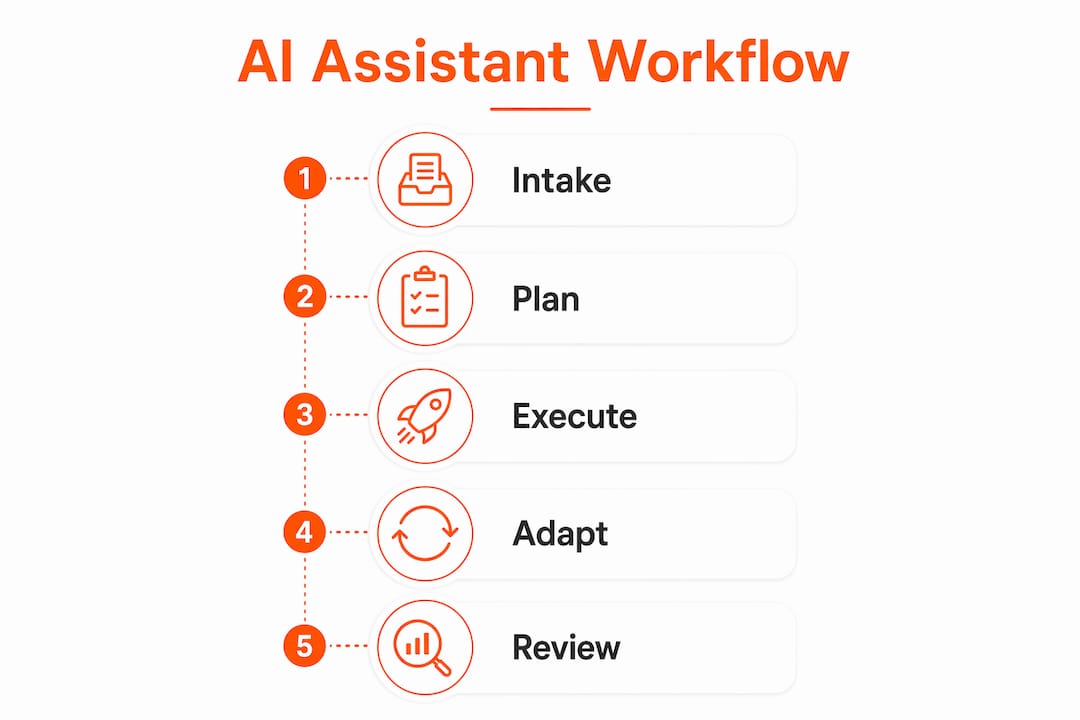
An AI productivity assistant is an always-on agent that curates your tasks, schedules your time, and synthesizes context across your tools — think of it as a personal chief of staff who never clocks out. If you’re juggling client deadlines, family commitments, and personal goals in three different apps, the fastest next step is to start a no-credit-card trial, connect your calendars and inbox, and generate your first AI daily plan. Vendor marketing references roughly 45% of work time reclaimed through integrated AI assistance. Treat that figure as directional — measure your own baseline before relying on the claim. The standard operating model for these assistants follows an agentic workflow: intake signals, build a context-aware plan, execute routine tasks, then adapt proactively as your day changes. Lifedesk is built around exactly that model, consolidating life and business data so its AI assistant can operate with full context.
What does a modern AI productivity assistant actually do?
Modern assistants are agentic, not reactive. They don’t wait for you to ask — they intake signals, build context-aware plans, execute routine tasks, and adapt proactively when something shifts.
Here’s what that looks like in practice across the four workflow stages:
Intake: You drop a voice note, forward an email, or type a brain dump. The assistant extracts tasks, deadlines, and commitments automatically.
Planning: It time-blocks your day around existing calendar events, estimates task durations, and flags trade-offs (that 2 PM client call conflicts with your deep-work block).
Execution: It drafts follow-up emails, triages your inbox by priority, generates meeting briefs from recent threads, and schedules recurring tasks without prompting.
Adaptation: Mid-day, a meeting runs long. The assistant reschedules lower-priority tasks, surfaces what still needs to happen today, and updates standing jobs.
A single voice input — “I need to prep the Q3 report, call Sarah back, and get a workout in before 6 PM” — can become a time-blocked daily plan with action items, reminders, and departure times in under two minutes. That’s the practical difference between a smart scheduling assistant and a basic to-do list.
Pro Tip:Set up at least one standing instruction on day one — something like “protect 90 minutes of deep work before noon.” The assistant learns your non-negotiables faster when they’re explicit.
Why an all-in-one platform beats a stack of specialized apps
Tool fragmentation is the single biggest failure point for AI assistants. When your calendar lives in one app, your tasks in another, your finances in a third, and your notes somewhere else, no assistant can make intelligent trade-offs — it only sees a slice of your life.
An integrated platform preserves context. When the assistant knows your invoice is due Friday and your kid’s recital is Thursday evening and you have a client call Wednesday morning, it can protect Thursday night without you having to manually block it. That’s the difference between a smart scheduling assistant and a calendar that just moves blocks around.
Integrated all-in-one platforms vs. assembling specialized apps:
Context: All-in-one wins. The assistant sees tasks, calendar, finances, and health data together and makes smarter trade-offs.
Single sign-on and notifications: One app, one notification stream, one login — less cognitive overhead.
Unified rescheduling: Conflicts get resolved across personal and professional calendars simultaneously.
Best-in-class point features: Specialized apps often go deeper in one area (e.g., a dedicated CRM or accounting tool). The trade-off is fragmentation.
Switching cost: Moving from five apps to one is a one-time effort; staying fragmented is a recurring tax on your attention.
Vendor marketing references roughly 45% of work time reclaimed through integrated AI assistance. Treat that figure as directional — the real test is running your own two-week baseline and comparing before and after.
When calendar, tasks, notes, and personal and business finances live in one system, the assistant can protect personal priorities — sleep, family dinner, workouts — with the same weight it gives client deadlines.
How to evaluate an AI planning assistant during a trial
Start with this checklist before you commit to any platform:
Multi-calendar sync (Google, Outlook, Apple)
Real-time rescheduling when priorities shift
Voice input and mobile capture for off-desk moments
Granular privacy controls and data deletion options
Web and mobile parity (iOS and Android)
Approval checkpoints before automated outbound actions
Transparent audit log of what the assistant did and why
Then run these five questions during your trial demo:
How does the assistant handle two conflicting calendar events — does it ask me or decide alone?
What actions require my explicit approval before executing?
Where is my data stored, and how do I delete it?
Can I set standing instructions (e.g., “never schedule meetings before 9 AM”)?
What does the free tier actually include, and what’s locked behind a paid plan?
On pricing: freemium is the standard model. Free tiers typically cover initial AI schedule generation and basic task management. Paid tiers unlock multi-calendar real-time sync, unrestricted rescheduling, and deeper analytics. If you need the assistant to actively defend your calendar across work and personal accounts, a paid plan is usually required.
During the trial, watch the UI carefully. You want to see upcoming AI suggestions displayed before they execute, clear edit and approval affordances, and explicit disclosure of which integrations the assistant is reading.
How to adopt an AI task assistant in 5 steps without losing control
Adopt gradually. Use the assistant for triage and drafts first; keep final approval as the default until you trust its judgment.
Run a brain dump and generate your first day plan. Dump everything — tasks, worries, commitments — into the assistant and let it build a time-blocked schedule. Don’t edit it yet; just observe what it prioritizes.
Set guardrails. Define who can reschedule your calendar, which actions require your sign-off, and what the assistant should never touch (family time, health appointments).
Add standing jobs and recurring templates. Weekly review, invoice reminders, follow-up sequences — these are the tasks that drain the most mental energy and are safest to automate first.
Enable voice capture on mobile. A 60-second voice brain dump on your commute keeps the task inventory complete without requiring desk time. This is where most people lose tasks — between meetings, in the car, at the gym.
Run a weekly review. Check what the assistant scheduled, what it missed, and tune your standing instructions. Apps that support one-click weekly review templates make this fast.
Pro Tip:Make “final approval” your default for any outbound action — emails, calendar invites, rescheduled meetings. Create one standing instruction like “protect family dinner at 6 PM and 90 minutes of deep work daily” so the agent learns your non-negotiables from the start.
Expect a warm-up period. Advanced personalization takes several weeks of consistent use and steady standing instructions before the assistant moves from helpful to genuinely intuitive.
Common pitfalls when adopting an AI personal organizer
Pitfalls are avoidable if you set boundaries early and monitor the assistant’s first two weeks closely.
Over-automation: The assistant acts without approval and sends an email you didn’t review. Fix: require approval for all outbound actions until trust is established.
Siloed integrations: You connected your work calendar but not your personal one. The assistant schedules a client call during your kid’s soccer game. Fix: connect all calendars on day one.
Data over-sharing: You granted access to every app without reviewing permissions. Fix: start with the minimum integration set and expand deliberately.
Unrealistic expectations: You expect the assistant to be intuitive in week one. It won’t be. Fix: commit to four weeks of consistent use before judging.
Switch fatigue: You change platforms every two weeks chasing features. Fix: pick one, set guardrails, and give it a full month.
Red flags during a trial: the assistant took an action with no audit log entry, there’s no undo or edit option after scheduling, the workflow is cloud-only with no local control, or voice and mobile capture are missing entirely. Any of these is a reason to pause before granting broader permissions.
How to measure whether your AI daily planner is actually working
Measurement is simple: baseline the metrics, run the assistant, compare.
Two-week baseline. Track these KPIs manually or with a time tracker: hours freed per week, task completion rate for prioritized tasks, calendar conflict count, time-to-decision for common admin items, and a subjective workload score from 1 to 10.
Enable the assistant with limited permissions for two to four weeks. Don’t change anything else.
Compare KPIs and your subjective score. Even a one-point drop in workload score matters — reduced context switching and fewer late-night catch-ups have outsized impact on how a week feels, even when the raw hours saved look modest.
Decide whether to broaden permissions based on what you measured, not what the marketing promised.
Small absolute changes in time freed can translate to large subjective improvements. Reclaiming a significant percentage of your work time — vendor figures reference up to 45% — can change both the quantity and quality of work produced in those reclaimed hours.
How Lifedesk maps to the agentic assistant model
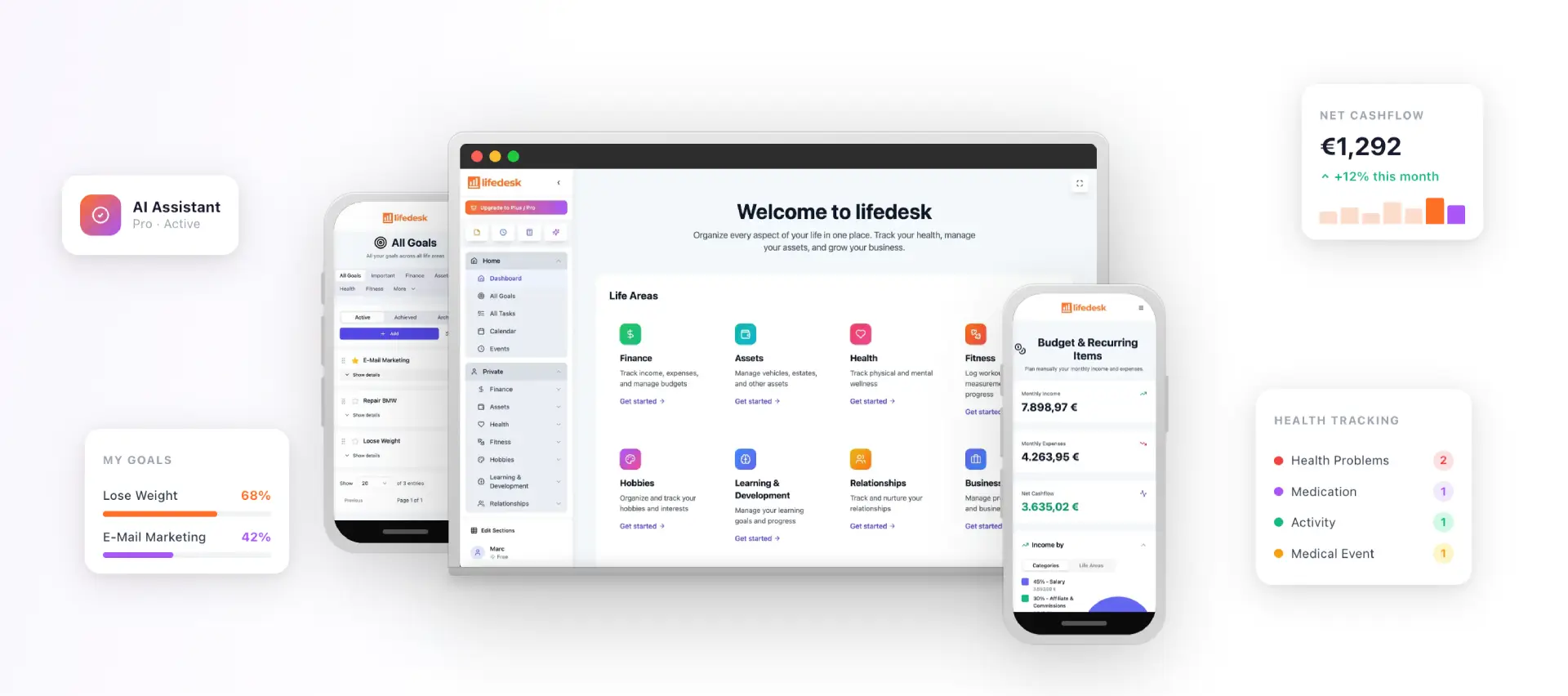
Lifedesk is purpose-built to consolidate life and business data so its AI assistant can operate with full context — not just your work calendar, but your finances, health goals, client projects, and personal commitments in one place.
Lifedesk runs on web, iOS, and Android, so the assistant has access to your full context whether you’re at your desk or between meetings. The free plan covers initial AI schedule generation; the Plus and Pro tiers unlock multi-calendar real-time sync, deeper analytics, and the full AI assistant feature set.
Key Takeaways
An AI productivity assistant delivers real value only when it has full context — which means integrating calendars, tasks, and finances into one system, not spreading them across five apps.
Point
Details
Agentic workflow is the standard
Look for intake → plan → execute → adapt, not just a smarter to-do list.
Integration beats specialization
A single platform with full context makes smarter trade-offs than five best-in-class apps.
Adopt with guardrails
Default to final approval for outbound actions; add standing instructions from day one.
Measure before you judge
Run a two-week baseline, then compare KPIs after four weeks with the assistant enabled.
Lifedesk covers the full model
Tasks, calendar, finances, health, and AI assistant in one app on web, iOS, and Android.
Lifedesk brings your whole life into one AI-powered workspace
If you’ve been managing work projects in one app, personal goals in another, and finances somewhere else, Lifedesk is built for exactly that situation. It’s an all-in-one life and business management platform where the AI assistant has access to your tasks, calendar, client work, finances, and health data simultaneously — so it can make the kind of trade-offs a real chief of staff would make.
The free plan gets you started with AI schedule generation immediately, no credit card required. Connect your calendars and inbox, run your first AI daily plan, and enable voice capture for on-the-go brain dumps. If you need multi-calendar real-time sync and full analytics, the Plus or Pro plan is the upgrade path. Start your trial at lifedesk.me and run the first AI daily plan as your initial experiment — then track your KPIs for four weeks before deciding whether to expand permissions.
Useful sources
The following sources informed examples and claims in this article. Product pages are vendor marketing; treat capability claims as self-reported unless independently verified.
Kea — The AI that works for you — vendor marketing page; source of the ~45% time-reclaimed figure and privacy/permission patterns (marketing claim, not independent research)
Helmvio — AI daily planner — product page; illustrates agentic workflow design and multi-output planning from a single prompt
Priority One — AI Daily Planner — product page; source of the 60-second voice brain dump to full daily plan capability
Serena — AI daily planner and weekly review app — product page; illustrates weekly review templates and one-click rescheduling
Operator.io — Your AI chief of staff — product page; illustrates the chief-of-staff framing and approval/guardrail patterns
Smart Planner AI — product page; illustrates freemium pricing model and calendar sync tiers
Microsoft Copilot Cowork — Microsoft product page; illustrates enterprise-grade agentic workflow with approval checkpoints and audit logs
FAQ
What is an AI productivity assistant?
An AI productivity assistant is an agentic tool that captures tasks, builds time-blocked plans, executes routine work like inbox triage, and adapts your schedule proactively as priorities shift — functioning as an always-on personal chief of staff.
How long does it take to see results from an AI planner app?
Most users see initial time savings within the first week, but meaningful personalization typically takes several weeks of consistent use and standing instructions before the assistant becomes genuinely intuitive.
What’s the difference between a free and paid AI daily planner?
Free tiers generally cover initial AI schedule generation and basic task management. Paid tiers unlock multi-calendar real-time sync, unrestricted rescheduling, and deeper analytics — the features most critical for people managing both personal and professional calendars.
Does Lifedesk work as an all-in-one AI life planner?
Yes. Lifedesk combines tasks, calendar, finances, health tracking, client management, and an integrated AI assistant in one platform available on web, iOS, and Android, making it suited for users managing both personal and business responsibilities.
How do I avoid losing control when using an AI task assistant?
Set final approval as the default for all outbound actions, start with a minimal integration list, and run a two-week observational period before granting the assistant broader permissions.