Use a list when your tasks are short, independent and mostly done in one sitting. Use a Kanban board when work passes through stages, when several things are in progress at once, or when you keep losing track of what is stuck. Most people need both: a list for...
Use a calendar for anything that happens at a specific time, and a to-do list for anything that only needs to happen eventually. Most people get stuck when they ask one tool to do the other’s job. A list can’t tell you whether Tuesday has room for a task, and a...
Mood and energy tracking means logging, a few times a day, how you feel and how much fuel you have, then reading the entries for patterns. Do it in 10 to 20 seconds per entry, 3 to 4 times a day, for two weeks. Add one line of context (what you were doing), and you...
A good personal dashboard is one screen that answers the few questions you ask yourself every day: What is next? Am I on track? What needs me right now? You set it up by choosing 4 to 6 widgets, arranging them in four zones, and deleting everything that does not earn...
Daily metrics tracking means watching a few current, high-frequency numbers that warn you early and let you correct course. Start by choosing a key performance question, then pick a small set of daily measures that answer it, such as time on priority tasks, completed...
Design daily boundaries, protect deep work, and run weekly reviews: that combination does more for sustainable balance than any single trick. Expect steadier energy and less burnout drift once boundaries are in place, and you can start today by picking one boundary (a...
Use time blocking for sustained deep work on a single project, and use task batching to group shallow, repeatable tasks into one focused session. Both methods solve the same underlying problem, which is constant context switching, but they solve it differently, and...
Open a dedicated business bank account and route every bit of business income there, right from the start. Pair it with a business credit card and standalone bookkeeping, and pay yourself through documented draws or payroll instead of pulling cash whenever you need...
Plan 2026 by picking 3 to 5 annual priorities, writing an if-then plan for each using mental contrasting, converting every priority into tracked projects and milestones, and running quarterly plus weekly reviews inside one integrated planner. This approach keeps...
Founders should track three things first: deep work hours, personal well-being basics like sleep and movement, and a weekly review. Start with one to three habits, log them in under 60 seconds each morning, and treat the data as a business input rather than a personal...
How to Organize Digital Documents: A Step-by-Step System
A single storage home plus a consistent naming rule is all you need to build a working digital document organization system. You can have it running in an afternoon. Microsoft found that many U.S. office workers rank quickly finding files as a top-three daily problem. The fix is not a fancier folder tree. It is picking one place and sticking to it.
Here is the six-step checklist you can start today:
Plan your scope — decide whether this covers personal files, work files, or both, and write a one-paragraph “org rules” note.
Pick one home — choose a single cloud folder or a local-plus-cloud combo. Every file lives there. No exceptions.
Choose a folder structure pattern — project-first, date-first, or category-first. Pick the one that matches how you search.
Set a naming convention — decide on a date format (YYYY-MM-DD) and separator (underscore or hyphen), then apply it everywhere.
Declutter and archive — spend 30 minutes scanning your existing files. Archive anything older than two years that you might need; delete the rest.
Back up and schedule maintenance — set a weekly 10-minute inbox sweep and a quarterly full review on your calendar right now.
The single most important action is Step 2. Until you have one home, every other rule is optional.
Key Takeaways
A consistent naming convention and a single storage home deliver more time savings than any folder structure alone.
Point
Details
One home, no exceptions
Pick one root folder (cloud or local-plus-cloud) and route every file through it.
YYYY-MM-DD naming first
Date-prefixed file names sort chronologically and survive folder reorganizations.
Three-level folder depth max
Deeper nesting slows navigation; keep structure to three clicks from root.
Test backups quarterly
A backup you have never restored is not a backup; test three files every quarter.
LifeDesk unifies the system
LifeDesk’s notes, document storage, tags, and projects implement the full checklist in one app.
What does good digital document organization actually require?
Good digital document organization starts with a plan, not a folder. Before you create a single directory, answer three questions: What am I organizing (personal, work, or both)? What does success look like (find any file in under 30 seconds, zero duplicates)? And who else needs access?
Scope first. A combined personal-and-work system works fine for freelancers and solopreneurs. If you have a day job with a separate IT-managed drive, keep those files there and build your personal system independently. Mixing the two creates permission headaches later.
Two measurable goals keep you honest. Pick something you can actually check: “I can find any contract in under 30 seconds” or “My Downloads folder stays empty by end of day Friday.” Vague goals like “be more organized” have no finish line.
The one-home rule.Dropbox notes that cloud storage and file organization are separate decisions: you can store files in the cloud and still have a chaotic mess. Picking one home means choosing a single root folder, whether that is Google Drive, iCloud Drive, OneDrive, or a local folder synced to a backup service, and routing every file through it. Scattered copies across Desktop, Downloads, and three cloud services are what make retrieval slow.
Write a README. Create a plain-text file at the root of your storage home called _README.txt (the underscore keeps it at the top of any alphabetical sort). Write three things in it: what belongs here, your retention rules (keep tax docs 7 years, keep contracts for the life of the relationship plus 3 years), and who has access. NARA frames digitization planning around Policies, Access, Systems, and Disposition — even for a solo freelancer, those four concepts are the right checklist.
Pro Tip:Set your README as read-only after writing it. On Mac, right-click → Get Info → check “Locked.” On Windows, right-click → Properties → check “Read-only.” That way you will not accidentally overwrite your own rules.
How do you choose the right folder structure pattern?
Three patterns cover nearly every use case. The right one depends on how you naturally search for files.
Best for freelancers and project-based workers. When you think “where is that logo file?” your first instinct is the project name, not the date or file type.
Pattern 2: Date-first
/Archive
  /2024
    /Q1
    /Q2
  /2025
    /Q1
Best for journalists, researchers, or anyone whose work is time-stamped by nature. Also useful as a secondary archive layer inside a project-first system.
Best for personal document management where files span years and projects but fall into clear life categories.
Deep nesting vs. shallow trees: Keep folder depth at three levels maximum. Beyond three clicks, people stop navigating and start searching, which defeats the purpose of the structure.
Hybrid approach: Most people end up with a category-first top level (Finance, Contracts, Projects, Personal) and a project-first or date-first second level inside each category. That combination is practical and easy to explain to a collaborator.
Device constraints: If you sync to a mobile device, avoid folder names with special characters or very long paths. Some sync clients truncate paths over 260 characters on Windows.
Pro Tip:Before building your tree, open your current messy folder and note the five searches you run most often. Build the top level around those five answers, not around what looks tidy.
What file naming conventions actually work? (Copyable templates)
Batch renaming saves hours when migrating old files. On Mac, select files in Finder, right-click, and choose “Rename.” On Windows, select files in File Explorer, press F2, and type a base name. For more control, use free tools like Bulk Rename Utility (Windows) or A-Rename (Mac). Before any batch rename, duplicate the folder as a safety snapshot.
How do you declutter, archive, and remove duplicates fast?
The clean-up workflow runs in five ordered steps. Do not skip the snapshot at the start.
Snapshot your current state. Copy your messy root folder to an external drive or a separate cloud folder labeled _OLD_Archive_YYYY-MM-DD. This is your rollback point.
Scan and tag. Open your largest messy folder. Sort by date modified. Anything untouched for more than two years gets a mental tag of “archive or delete.”
Apply the decision rule. Keep if: you need it for legal or financial reasons (tax records, contracts, licenses). Archive if: you might need it but probably won’t (old drafts, superseded versions). Delete if: it is a duplicate, a temp file, or a screenshot you took once and forgot.
Find and remove duplicates. Use dupeGuru (free, cross-platform) or the built-in duplicate finder in Google Drive. Always preview the list before deleting. Keep the copy in your new organized location; delete the stray copies.
Merge related files. Multiple PDFs of the same record (a scanned contract split into three pages) should be merged into one file. Adobe Acrobat, Preview on Mac, or the free PDF24 tool all handle this. Adobe also recommends converting long-term preservation documents to PDF/A, which is an archival format that embeds fonts and color profiles so the file remains readable decades from now.
Decision table for archive vs. delete vs. keep:
Condition
Action
Legal or financial record, retention period active
Keep in active system
Legal or financial record, retention period expired
Delete (shred if sensitive)
Old draft, superseded by a final version
Archive or delete
Duplicate of a file already in the new system
Delete the duplicate
Sentimental or reference value, rarely accessed
Archive in a dated subfolder
Temp file, cache, or auto-generated file
Delete immediately
What is the right storage, backup, and versioning setup?
Treat storage and organization as separate decisions, then layer backup on top. The recommended stack for most individuals and freelancers is: one primary cloud home (Google Drive, OneDrive, or iCloud Drive) for daily access, local sync to your laptop for offline access, and a periodic offline backup to an external drive or a second cloud service.
Why three layers? Cloud services can have outages, accidental deletions, or account lockouts. A local sync gives you instant access without internet. An offline backup protects against ransomware and account compromise. This is the 3-2-1 rule: three copies, on two different media, with one offsite.
Versioning for collaborative work. The single most effective rule is one source of truth: one file, one location, no emailed copies. Use the built-in version history in Google Drive (30 days on free plans, unlimited on Workspace) or OneDrive (30 days). For regulated records, the SEC requires electronic recordkeeping systems to maintain either a WORM (write once, read many) standard or a full audit trail that records every modification, deletion, date, time, and operator identity. Most individuals do not need WORM storage, but freelancers handling broker-dealer or financial records should be aware of it.
Restore test schedule. A backup you have never tested is not a backup.
Pro Tip:Set a calendar reminder for the first Saturday of every quarter: pick three random files from your backup, restore them to a temp folder, and confirm they open correctly. This takes 10 minutes and has saved countless people from discovering a broken backup during an actual emergency.
How should you handle sharing and permissions?
Most file-sharing problems come from one habit: sharing a link and never revisiting it. Three permission templates cover nearly every situation.
Owner-only: No sharing link. Used for tax returns, passwords, legal documents, and anything with personal identifying information. Store locally or in a private cloud folder with no share links active.
Team edit: Shared with named collaborators who have edit rights. Used for active project folders, shared budgets, and collaborative drafts. Always share with specific email addresses rather than “anyone with the link.”
Client read-only: A view-only link with an expiration date. Used for delivering final files, sharing proposals, or giving a client access to a project folder. Set the link to expire 30 days after delivery.
Sharing checklist before you send any link:
Set an expiration date (most cloud services support this under “link settings”).
Disable download if the file is a deliverable you want to control.
Check whether “anyone with the link” is on. If yes, switch to named-user sharing unless the file is genuinely public.
Add a password for sensitive documents.
Quarterly audit steps: Open your cloud service’s “Shared with others” view. For each item, ask: Is this still active? Does this person still need access? Revoke any link that is expired or no longer needed. On Google Drive, this is under “Manage access.” On OneDrive, it is under “Manage access” in the file’s details panel.
When should you use tags vs. folders?
Folders enforce hierarchy. Tags handle everything else. Use folders when a file belongs to exactly one place. Use tags when a file has attributes that cut across multiple folders.
A contract with a specific client belongs in /Contracts/ClientName/. But if you also want to filter by status (pending, signed, expired) or by project, tags do that without duplicating the file. The decision flow is simple: if the attribute is mutually exclusive (a file can only be in one project), use a folder. If the attribute is multi-dimensional (a file can be both “pending” and “Q2” and “ClientA”), use a tag.
Search operators speed retrieval. In Google Drive, type:pdf owner:me narrows results to your own PDFs. title:invoice 2025 finds files with “invoice” in the name from 2025. In macOS Finder, use kind:pdf date:2025 in the search bar. In Windows File Explorer, *.pdf datemodified:2025 works in the search box. Learning five operators for your primary storage home is faster than clicking through folders.
Pro Tip:Keep your tag vocabulary short. Ten tags maximum. If you have 40 tags, you will stop applying them consistently, and the system collapses. Start with: status (draft, final), type (invoice, contract, receipt), and priority (urgent, archive).
What does a realistic maintenance schedule look like?
Maintenance fails when it is vague. Assign every task a frequency and an owner.
Weekly (10 minutes, Friday afternoon): Empty your Downloads folder. Move any new files to their correct home. Rename anything with a vague name like “document(1).pdf.”
Monthly (20 minutes): Review your Inbox or staging folder. Archive anything completed. Delete temp files and screenshots.
Quarterly (45 minutes): Audit sharing permissions. Run a duplicate check. Verify that your backup ran successfully. Check that your README still reflects how you actually use the system.
Yearly (2 hours): Full retention review. Delete files past their retention horizon. Convert any documents you want to preserve long-term to PDF/A. Update your folder structure if your work has changed significantly.
How to measure whether it is working: Track three numbers. First, how long does it take to find a specific file from memory? Under 30 seconds is the target. Second, how many duplicates does your duplicate finder report each quarter? The number should trend toward zero. Third, did your last restore test succeed? If any of these three metrics slip, your maintenance cadence needs tightening, not a complete redesign.
How do you migrate a messy drive into your new system?
Migration is where most people stall. The key is an ordered checklist with a rollback option at every stage.
Snapshot. Before touching anything, copy your entire current file system to an external drive or a separate cloud folder labeled _PRE-MIGRATION_YYYY-MM-DD. Do not skip this.
Inventory. Open your root folder and list every top-level folder and its approximate file count. A spreadsheet with three columns (folder name, file count, rough category) takes 20 minutes and prevents surprises.
Pick your new home. Confirm your chosen cloud or local root folder is set up and your README is in place.
Bulk move by category. Start with one category (Finance, for example). Move all finance-related files to their new location. Apply naming templates as you go. Do not try to rename everything at once.
Apply naming templates. Use batch renaming for large groups of similar files (all invoices from 2024, for example). Spot-check 10% of renamed files before moving on.
Verify. Open 20 random files from the new location. Confirm they open correctly and are in the right folder.
Archive the old location. Once verified, compress the _PRE-MIGRATION folder and move it to cold storage (an external drive or a rarely-accessed cloud folder). Do not delete it for at least 90 days.
Test restores. Pick five files from the new system and restore them from your backup. Confirm the backup reflects the new structure.
Rollback plan: If something goes wrong at any step, stop and restore from the _PRE-MIGRATION snapshot. Never delete the snapshot until you have completed a full restore test.
Photo libraries and email attachments deserve special handling. For photos, use Google Photos or Apple Photos to import by date rather than manually moving files. Both preserve EXIF metadata (date taken, location, camera model). For email attachments, export them by sender or subject thread rather than by date, so related files stay together.
Pro Tip:Migrate in 90-minute sprints, one category per sprint. After each sprint, close your laptop and do something else. Coming back with fresh eyes catches naming errors you would miss in a four-hour marathon.
How LifeDesk maps to this checklist end-to-end
Every step in this guide has a direct equivalent inside LifeDesk’s all-in-one platform, which means you can implement the whole system without stitching together five separate apps.
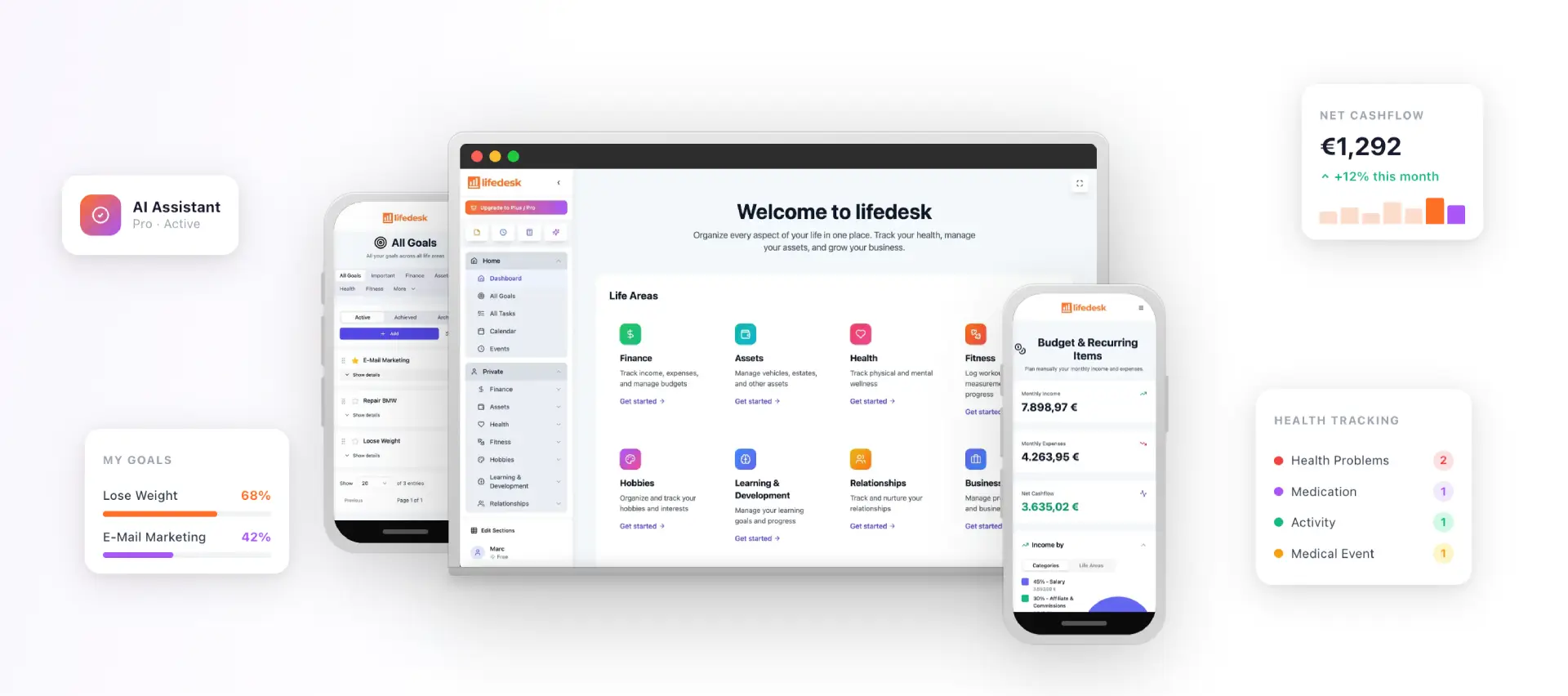
One home: LifeDesk’s document storage and Notes act as your single root. Store files, attach them to Projects or Tasks, and access everything from the web, iOS, or Android.
Folder structure and tagging: LifeDesk’s Projects map to your top-level categories. Tags inside Notes and Tasks handle cross-cutting attributes (status, client, content type) without duplicating files.
Naming and README: Create a pinned Note at the top of your workspace as your README. It stays visible and editable without the risk of getting buried in a folder.
Maintenance reminders: Attach recurring Tasks to your maintenance schedule. A weekly “empty inbox” task and a quarterly “permission audit” task take two minutes to set up and run automatically.
Migration: Import existing files into the relevant Project or Note. LifeDesk’s project management features let you attach documents directly to the work they belong to, which eliminates the “where does this go?” question during migration.
Free vs. paid plans: The free plan covers notes, basic document storage, tasks, and tags. The Plus and Pro plans unlock higher storage limits, bank account integration for financial document workflows, and the AI assistant, which can help categorize and surface files faster.
For a freelancer, the suggested setup is: one Project per active client, a Finance Project for invoices and receipts linked to LifeDesk’s finance tracking features, and a Personal Project for health, insurance, and household documents.
How do you connect documents to your broader productivity workflow?
Documents do not live in isolation. A contract belongs to a client. A meeting note belongs to a project. An invoice belongs to a payment due date. Linking files to the work they support is what turns a filing system into a productivity tool.
The practical approach: attach documents directly to the calendar event, task, or project they relate to. In Google Calendar, you can attach a Google Drive file to any event. In most project management tools, you can attach files to tasks or milestones. This means that when you open the meeting, the agenda and notes are already there. When you open the task, the brief is attached.
For freelancers, the most useful link is invoice-to-payment. Store the invoice file in your Finance folder, then create a task with the due date and attach the invoice. When the payment arrives, mark the task complete and move the invoice to a “Paid” subfolder. That single habit eliminates the “did I send that?” scramble.
Email integration is the other high-value connection. Services like Zapier or Make (formerly Integromat) can automatically save email attachments to a designated cloud folder based on sender or subject line rules. Set a rule: “If sender is @clientname.com and subject contains ‘invoice,’ save attachment to /Finance/ClientName/Incoming.” That one automation removes a daily manual step.
Security best practices beyond basic permissions
Permissions control who can see a file. Encryption controls whether a file is readable even if someone gets past the permissions.
Encryption at rest and in transit. Most major cloud services (Google Drive, OneDrive, Dropbox) encrypt files in transit (TLS) and at rest (AES-256). That covers the baseline. For highly sensitive documents, add a second layer: encrypt the file itself before uploading. Tools like Cryptomator (free, open-source) create an encrypted vault inside your cloud folder. Files inside the vault are unreadable without the password, even to the cloud provider.
Two-factor authentication (2FA). Enable 2FA on every cloud account that holds documents. Use an authenticator app (Google Authenticator, Authy) rather than SMS, which is vulnerable to SIM-swapping. This single step blocks the majority of account takeover attempts.
Secure document disposal. Deleting a file does not erase it. On Windows, use Eraser (free) to securely overwrite deleted files. On Mac, the built-in Secure Empty Trash was removed in macOS Sierra, but you can use the rm -P terminal command for individual files or FileShredder for batch deletion. For physical documents that were scanned, cross-cut shredding is the standard.
Version integrity for regulated records. If you handle financial or legal records professionally, folder organization alone is not sufficient. You need an electronic recordkeeping system that preserves a complete, timestamped trail of every modification. The SEC’s recordkeeping rule specifies either WORM storage or an audit-trail alternative for broker-dealer records. Most individuals do not face this requirement, but it is the right model for anyone managing records subject to litigation holds or regulatory audits.
How do you handle PDFs, images, and spreadsheets differently?
Each format has quirks that affect how you store, name, and retrieve it.
PDFs are the most stable format for long-term storage. Use PDF/A for anything you want to preserve for more than five years: tax returns, signed contracts, official correspondence. PDF/A embeds fonts and color profiles, so the file looks identical regardless of which software opens it decades later. For active working documents, standard PDF is fine. Name PDFs with the YYYY-MM-DD prefix so they sort chronologically.
Images carry metadata that folders cannot. EXIF data embeds the date taken, GPS coordinates, and camera model inside the file itself. Do not rename image files with generic names like “photo001.jpg” — you lose the ability to sort by capture date. Instead, use a naming convention that preserves the original date: YYYY-MM-DD_Subject_Source.jpg. For large photo libraries, Google Photos and Apple Photos manage EXIF-based organization automatically.
Spreadsheets are the trickiest format for version control. A spreadsheet with 12 monthly tabs is one file; a spreadsheet emailed back and forth becomes five conflicting versions by Tuesday. The rule: one spreadsheet, one cloud location, version history on. If you need to share a snapshot (a budget as of a specific date), export a PDF copy rather than sharing the live file. Name the PDF with the date: 2026-03-31_Budget-Snapshot_Q1.pdf.
For any document you want to archive long-term, Adobe recommends PDF/A as the archival format because it is an ISO standard designed specifically for long-term preservation.
How do you automate file organization to reduce manual work?
Automation does not replace a good structure. It enforces it. Microsoft notes that automation features like Storage Sense and auto-categorization rules reduce manual maintenance overhead when the underlying folder structure is already consistent.
Built-in automation options:
Google Drive: Use Google Apps Script to automatically move files matching a naming pattern to a specific folder. A basic script can run on a daily trigger and requires no coding beyond copying a template.
OneDrive: Power Automate (included with Microsoft 365) has a “When a file is created” trigger that can rename, move, or tag files based on rules you define.
macOS Folder Actions: Right-click any folder in Finder, select “Folder Actions Setup,” and attach an Automator workflow. A simple workflow can rename incoming files or move them to subfolders based on file type.
Hazel (Mac, $42 one-time): The most capable rule-based file organizer for Mac. You define rules (“if file name contains ‘invoice’ and file type is PDF, move to /Finance/Invoices and rename with date prefix”) and Hazel runs them silently in the background.
Zapier or Make: For cloud-to-cloud automation. Save email attachments to Drive, move completed project files to an archive folder when a task is marked done, or sync files between two cloud services.
Safety checks for any automation rule: Always test a new rule on a small sample folder first. Log what the rule moves (most tools have a history view). Set a monthly reminder to review automation logs and confirm rules are still working as intended. An automation rule that silently misfires for three months can scatter hundreds of files.
For users with large scanned archives, Paperless-ngx (open-source, self-hosted) offers full-text search, auto-tagging rules, and mobile import. It is more setup than a cloud service but gives you complete control over your document archive.
LifeDesk makes document organization part of your whole life system
Most document management tools solve one problem: storage. LifeDesk solves the problem one level up. When your documents live inside the same platform as your tasks, goals, calendar, and finances, you stop managing files and start managing outcomes.
A freelancer using LifeDesk does not need a separate folder for client contracts, a separate app for project tasks, and a separate spreadsheet for invoices. The contract lives inside the client’s Project. The invoice is attached to the payment task, which is linked to the finance tracker. The whole workflow is visible in one place, on web, iOS, or Android.
The free plan is a real starting point: notes, document storage, tasks, and tags are all available without a subscription. The Plus and Pro plans add bank account integration, higher storage limits, and an AI assistant that helps surface the right file at the right moment. For freelancers and solopreneurs who manage both personal and business documents, that combination replaces three or four separate tools.
LifeDesk: your all-in-one home for documents and everything else
Stop paying for a document app, a task app, and a calendar app separately. LifeDesk brings document storage, notes, tags, projects, tasks, finance tracking, and an AI assistant into one platform available on web, iOS, and Android.
Freelancers and solopreneurs get the most from it: client contracts attached to client projects, invoices linked to payment tasks, and a personal document section for health records, insurance, and household files. The free plan covers the essentials. The Pro plan adds bank account integration and AI-powered file retrieval.
Start by picking one storage home (a single cloud folder or local-plus-cloud combo), then apply a consistent naming convention using YYYY-MM-DD date prefixes. Microsoft recommends choosing a system and enforcing it consistently as the single most important step.
What is the best way to store digital documents?
Use a primary cloud service for daily access, a local sync for offline availability, and a periodic offline backup for recovery. This 3-2-1 approach (three copies, two media types, one offsite) protects against both accidental deletion and account compromise.
How do you manage digital documents over time?
A weekly 10-minute inbox sweep, a monthly archive review, and a quarterly permission audit keep the system usable without heavy overhead. The key metric is recovery speed: if you cannot find any file in under 30 seconds, the maintenance cadence needs tightening.
What is a digital document management system?
A digital document management system is a combination of a storage location, a folder structure, a naming convention, and a maintenance routine that lets you store, find, and share files reliably. Document management software like LifeDesk adds tagging, task integration, and version history on top of basic storage.
When should you use tags instead of folders?
Use folders when a file belongs to exactly one category or project. Use tags when a file has attributes that span multiple folders, such as status (draft, final), client name across projects, or content type. Keeping your tag vocabulary to ten or fewer terms prevents the system from collapsing under its own complexity.