A life operating system (often shortened to Life OS) is one connected setup where your goals, projects, tasks, calendar, notes, money and habits live together and inform each other. A to-do list only stores actions. A life OS also tells you why those actions matter...
The most reliable way to plan work and personal life together is to stop splitting them. Write every commitment into one inventory, put it on one calendar, rank it by importance and urgency, give it a block of time, and review the plan weekly. The rest of this guide...
A calendar time audit is a review of what your calendar says you did over the past few weeks, set against what you say matters. You export or scroll back through four to eight weeks, sort every block into a handful of categories, add up the hours, and compare the...
TL;DR A goal only becomes real when it has a date, a duration and a place on the calendar. Recurring blocks are one of the simplest ways to do this. Structure goals in layers: one or two main missions, projects that act as milestones, and daily actions. Plan, then...
Use a list when your tasks are short, independent and mostly done in one sitting. Use a Kanban board when work passes through stages, when several things are in progress at once, or when you keep losing track of what is stuck. Most people need both: a list for...
Use a calendar for anything that happens at a specific time, and a to-do list for anything that only needs to happen eventually. Most people get stuck when they ask one tool to do the other’s job. A list can’t tell you whether Tuesday has room for a task, and a...
Mood and energy tracking means logging, a few times a day, how you feel and how much fuel you have, then reading the entries for patterns. Do it in 10 to 20 seconds per entry, 3 to 4 times a day, for two weeks. Add one line of context (what you were doing), and you...
A good personal dashboard is one screen that answers the few questions you ask yourself every day: What is next? Am I on track? What needs me right now? You set it up by choosing 4 to 6 widgets, arranging them in four zones, and deleting everything that does not earn...
Daily metrics tracking means watching a few current, high-frequency numbers that warn you early and let you correct course. Start by choosing a key performance question, then pick a small set of daily measures that answer it, such as time on priority tasks, completed...
Design daily boundaries, protect deep work, and run weekly reviews: that combination does more for sustainable balance than any single trick. Expect steadier energy and less burnout drift once boundaries are in place, and you can start today by picking one boundary (a...
Recurring Tasks: How to Set Them Up Without the Clutter
A recurring task is any piece of work that comes back on a pattern: the weekly invoice run, the Tuesday workout, the monthly tax set-aside, a client’s birthday. The best way to manage them is to decide two things for each one: what triggers the next copy (the calendar or your own completion), and how often it really needs to come back. Get those two right, and repeating work stops nagging you and starts running in the background.
This guide walks through both decisions, then shows how to handle checklists, missed instances, workouts, time tracking and reminders, so your list stays short and trustworthy.
LifeDesk
Keep recurring tasks in context
LifeDesk brings tasks, goals, calendars, and finances together, helping you organize repeating work alongside your wider responsibilities.
Pick the trigger first: use a fixed schedule for things tied to a date (rent, invoices), and repeat-after-completion for things tied to a gap (watering plants, following up with leads).
Match frequency to the cost of a miss. Daily repeats that don’t need to be daily turn into background noise.
Keep checklists as subtasks under one parent task, and put time-bound habits like workouts on the calendar as blocks.
Review your repeating items every 8 to 12 weeks and after any big change in your routine.
Keep tasks, calendar, goals and money in one place so repeating items sit next to the work they support.
A recurring task is a task that regenerates after a set interval. You do it, you mark it done, and a new copy appears for the next round. Common examples sit in three groups:
Work routines: sending invoices, weekly planning, inbox review, backing up files, posting content.
Relationships and health: calling family, remembering a client’s birthday, workouts, medication refills.
The trouble is that repeating items are cheap to create and expensive to keep. Each one is a small promise that shows up again and again. Add twenty of them with vague names and daily frequency, and your list fills with things you click away without thinking. Then the one that matters gets skipped along with the rest.
So the goal is not to automate everything. It is to automate the right things at the right pace, and to be able to see them in context.
Fixed schedule or after completion?
Most task tools offer two ways to decide when the next copy appears. The names differ, but the logic is the same.
Fixed schedule. The next date is calculated from the calendar. “Every Monday” is always the next Monday, whether you did the task on time or three days late. Use this when the date is set by something outside you: a billing cycle, a weekly meeting, a filing deadline, a class.
After completion. The next date is calculated from when you actually finished. “Two weeks after completion” means the clock restarts when you check it off. Use this when what matters is the gap between sessions: changing a filter, following up with a lead, reviewing your finances, deep-cleaning the kitchen.
A quick test: if doing it late would mean the next one should also happen late, use after completion. If doing it late would mean you now owe two, use a fixed schedule.
Task
Better trigger
Why
Send monthly client invoice
Fixed schedule (1st of month)
The billing date does not move when you are late
Follow up with a prospect
After completion (every 10 days)
The gap since the last contact is what counts
Weekly planning session
Fixed schedule (Friday afternoon)
Anchors the end of your week
Refill pill organizer
After completion (every 7 days)
You want a full week between refills
Quarterly estimated tax set-aside
Fixed schedule
The due date is set externally
Check in with a mentor
After completion (every 6 weeks)
Friendly rhythm, not a deadline
If you freelance or run a one-person business, this split alone cleans up a surprising amount of mess, because client-facing work is mostly fixed-date while maintenance work is mostly gap-based.
How to choose a repeat frequency
The default instinct is to repeat things more often than needed, “just in case.” Resist it. AppMaster’s guidance on recurring task systems suggests matching the schedule to the natural rhythm of the work: daily for fast-moving queues and service checks, weekly for work that needs more context, and monthly for slower work such as access reviews and policy updates. It also warns that daily tasks quickly become background noise and should be reserved for cases where a one-day delay creates a real problem.
A practical way to apply this is to ask three questions for every repeating item:
What is the real deadline? Not the one you invented, the one someone or something else enforces.
What does a miss cost? A missed invoice run costs cash flow. A missed desk wipe-down costs nothing.
How fast does the work change? If nothing new accumulates in a day, a daily check finds nothing.
The same source advises following the pace of the work rather than the calendar’s smallest unit. Start from the cost of a miss, then pick the slowest frequency that still protects you.
A worked example for a freelancer
Say you are a freelance designer with three retainer clients. Here is a sensible set of repeating items:
Daily (2 items): a 10-minute check of your client inbox and a look at today’s calendar. A day’s delay really can cost a client response time.
Weekly (4 items): a Friday review of open projects, a weekly invoice check for hourly clients, a Monday priorities pass, a workout block.
Monthly (4 items): retainer invoices, bookkeeping reconciliation, subscription audit, a look at your goals progress.
Quarterly (2 items): tax set-aside and a pricing review.
Yearly (a few): insurance renewals, domain renewals, client birthdays.
That is about a dozen recurring items for the daily and weekly layers combined, not forty. Everything else is event-driven and does not need to repeat at all.
Keep checklists and subtasks tidy
Multi-step routines, like a month-end close or a weekly content publishing run, are where repeating tasks get messy fast. A simple structure keeps them clean:
Create one parent task for the routine with a clear verb-first name: “Close the month: invoices, receipts, reconciliation.”
Put the steps in as subtasks or a checklist under it.
Let only the parent repeat. When the next instance appears, the steps reset and you adjust any dates that no longer fit.
If a step needs its own deadline or its own reminder, promote it to a standalone task and link it back.
Name tasks so you know what “done” looks like. “Marketing” will sit forever. “Schedule next week’s three posts” gets checked off.
Handle missed and rescheduled instances
Every system has to answer one question: what happens when you skip one? There are three honest options, and you can mix them.
Let it roll forward. For gap-based tasks, a late completion simply restarts the clock. No guilt, no pile-up.
Skip it deliberately. For fixed-date items you cannot do this week (a vacation, a sick day), skip that instance instead of leaving it overdue. An overdue list full of known skips teaches you to ignore overdue flags.
Delete it for good. If you have skipped something three times in a row, it is not a task, it is a wish. Either shrink it, change the frequency, or remove it.
One more hygiene rule: when a recurring item is overdue, decide the same day. Do it, move it, or skip it. Rolling it forward with no decision is how backlogs form.
If you want more on keeping the calendar and the to-do list working together instead of competing, our piece on calendar vs. to-do list explains when each one should be in charge of your day.
Put time-bound habits on the calendar
Some repeating items are not really tasks. They are blocks of time: a workout, a weekly planning hour, a deep-work session. These belong on the calendar, because a checkbox cannot reserve 45 minutes for you.
Schedule workouts as standing events
The approach works the same in almost any calendar. The Healthy Habit Hub’s fitness calendar-blocking guide recommends creating standing workout events with clear titles, marking them as busy so meetings cannot land on top of them, setting two reminders (one an hour before for preparation, one ten minutes before), and repeating them for 8 to 12 weeks before reassessing. Their example pattern is a lunchtime session twice a week plus a longer Saturday morning block.
Turn that into a routine you can copy:
Choose two or three fixed slots that already survive a normal week.
Title each event with the actual session, such as “Strength: lower body,” not just “Gym.”
Set the status to busy so colleagues and booking links see you as unavailable.
Add a prep reminder (bag packed, food eaten) and a go-time reminder.
The same idea works for work that needs uninterrupted time. A weekly block for admin, a daily block for your hardest task, a monthly block for finances. If you want the full method, our practical guide to time blocking covers how to build the blocks, and time blocking versus task batching helps you decide which one fits deep work and which fits admin.
Use the calendar to track where your time goes
Repeating events do double duty. Once your routines live on a calendar, they become data. Max Patiiuk, who tracked his hours for four years with repeated calendar events for sleep, meals, transit, exercise and chores, describes the payoff: aggregating the data by week, month or year makes monthly and end-of-year reflection easier, because you can see where your time went and whether it matches your goals.
You do not need to go that far. A lighter version works well:
Give each repeating block a consistent name and category (client work, admin, health, learning).
At the end of each week, compare planned blocks with what actually happened.
Every month, total the hours per category and ask whether the split reflects what you say matters.
This is also how you find out that your “daily 30-minute email check” actually takes 70 minutes, or that the workout you keep skipping is always the 6 a.m. one. Those findings tell you which repeating items to shrink, move or drop. Our guide to calendar time auditing walks through the weekly audit step by step, and time management for freelancers shows how to protect billable hours while you do it.
Reminders that actually get acted on
A reminder is only useful if it fires at a moment when you can do something about it. Three rules help:
One reminder per task, two at most. Stacked alerts get dismissed as a group.
Remind at the cue, not at the deadline. A reminder for “send invoice” works best when you sit down to work for the day, not at 11 p.m.
Put a lead time on big items. A tax set-aside needs a heads-up a week ahead, not on the day.
For money tasks, the cue is often a calendar event. If you want the mechanics of tying bills, invoices and payouts to dates, see how calendar finance integration automates money events.
When the same manual step keeps repeating across a team or a small business (a follow-up email, a status update, a handoff), it may be better to automate it than to remind yourself. Workflow automation tools for small businesses are worth a look when reminders alone are not reducing missed deadlines.
Birthdays and relationship check-ins
Client birthdays, anniversaries of a first project and “it has been a while” check-ins are classic yearly or gap-based repeaters. Set birthdays as yearly fixed-date items with a reminder a few days ahead, so you have time to send a note rather than a last-minute text. Use after-completion repeats for loose check-ins: every eight weeks for a key client, every quarter for a former colleague. Keep a one-line note on each person (what they care about, what you discussed last) so the reminder leads to a real message.
Know the limits of your calendar’s repeats
Repeating events in calendar apps run out or break in edge cases. Before you build a three-year routine, check the help pages of your calendar for its recurrence limits, how it handles “last Friday of the month,” and what happens to a series when you edit only one instance. Test with a single item first and look at the next few generated dates. If the next dates are wrong, fix the rule before you duplicate it across a dozen events.
Review and adjust when your routine changes
Routines change: a new client, a new baby, a move, a different gym, a seasonal slowdown. Repeating items from your old life then become friction. A simple review habit prevents this.
Every 8 to 12 weeks (the same cadence suggested for workouts):
Open your list of all repeating items and sort by frequency.
For each one, ask: did I do it, and did it matter?
Shrink the frequency of anything done late more than half the time.
Delete anything skipped three times in a row.
Re-time any block that kept getting moved.
After any major change: do a quick audit that same week rather than waiting for the next scheduled review. A new job or client changes your energy peaks and your free hours, so your standing blocks should move too.
A useful side effect: time data from your calendar or a time tracker shows which routines fit your real week. If you track hours for clients or for care work, the same logic applies. Look at the actual hours, then adjust the schedule to match them.
Recurring work gets harder to manage when it is spread across a task app, a calendar, a finance tool, a fitness log and a notes app. You end up with a daily task in one place, the matching calendar block in another, and no view of how they relate.
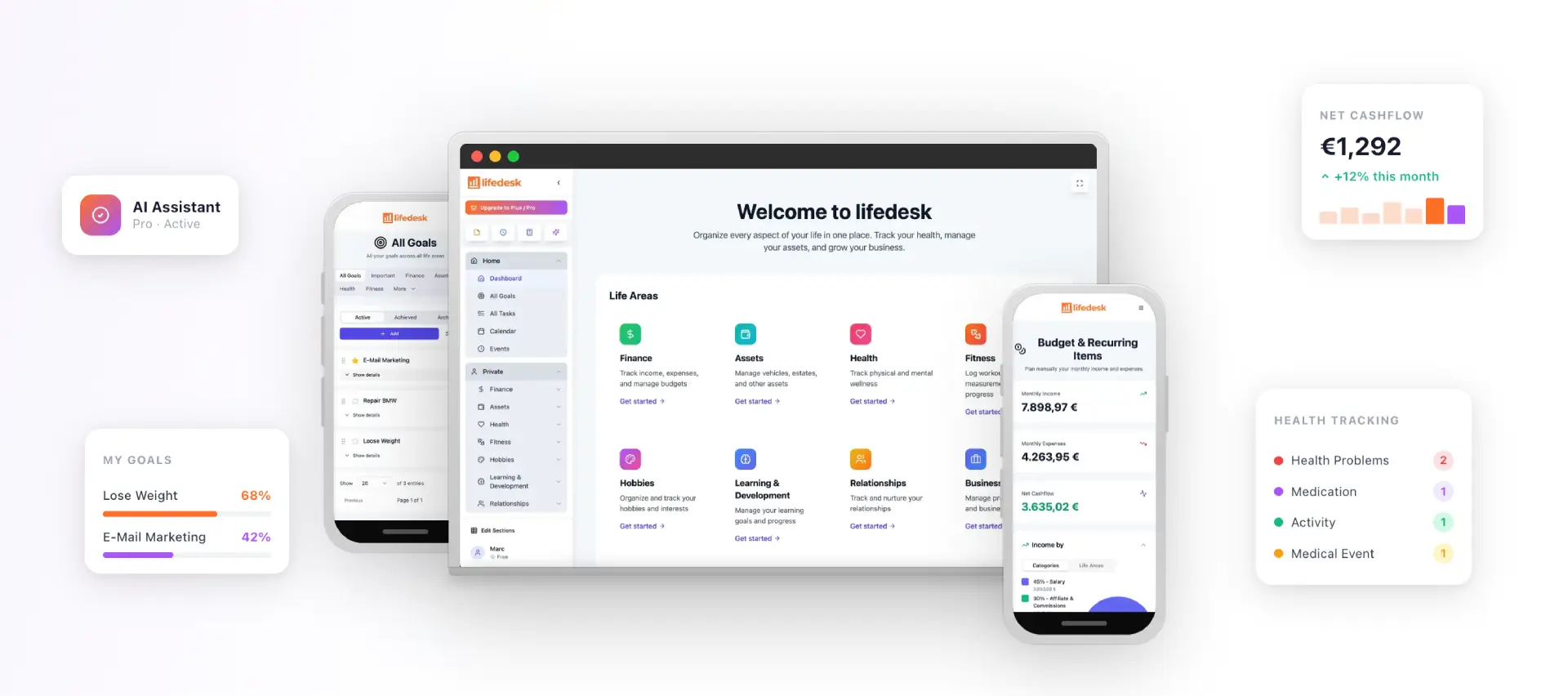
LifeDesk is an all-in-one platform for web, iOS and Android that brings tasks, goals, calendar, finances, health, fitness, relationships, learning and business organization into one app, with separate but accessible views for private and business life. It also includes time tracking, note-taking, document storage and an integrated AI assistant. Our tasks and goals features are built to keep your to-dos connected to the goals they serve.
The Free plan costs $0 per month. Plus is $9 per month and Pro is $19 per month, and the paid plans unlock premium features such as bank account connections, higher limits and the AI assistant. You can compare them on the LifeDesk pricing page and start with the free plan to organize your repeating routines.
List what repeats. Write down every recurring item you can think of, work and personal.
Cut the list. Remove anything with no real cost of a miss.
Choose the trigger for each survivor: fixed schedule or after completion.
Choose the frequency using the slowest rhythm that still protects you.
Move time-bound items to the calendar as busy blocks with clear titles.
Set at most two reminders per item, timed to the cue.
Book your first review in 8 to 12 weeks, on the calendar, as a repeating event.
You will end up with a shorter list that you actually believe in, which is the whole point.
FAQ
What is the difference between a recurring task and a recurring calendar event?
A recurring task is something you complete and check off, then it returns. A recurring calendar event is a block of time that happens whether or not you “finish” anything. Use tasks for outcomes (send the invoice) and events for time commitments (a workout or a planning hour).
How often should a task repeat?
As rarely as the cost of a miss allows. Daily is for work where a one-day delay causes real problems, weekly suits work that needs context, and monthly suits slower reviews and renewals, as AppMaster’s recurring task guidance explains. If you are completing a task late more than half the time, lengthen the interval.
How do I stop recurring tasks from cluttering my list?
Keep one parent task per routine with its steps as subtasks, set no more than two reminders, and skip instances you cannot do instead of leaving them overdue. Delete anything you have skipped three times in a row. Review the full list every 8 to 12 weeks.
How do I schedule workouts on a calendar?
Create standing events with specific titles, mark them busy, add a preparation reminder and a go-time reminder, and repeat them for 8 to 12 weeks before reassessing. The Healthy Habit Hub’s calendar-blocking steps use this pattern.