Project and client management work best as two linked systems, not one blurred job. Delivery lives on scope, schedule, and resourcing; the relationship lives on trust, expectations, and retention. Agencies that connect them, with a shared client record and a fixed...
Quarterly planning means running your business goals on a 90-day cycle instead of a single annual push, reviewing progress and adjusting course every quarter. The practical version that works best: pick a few measurable priorities, assign a clear owner to each, set...
Most people don’t need one framework. They need three, stacked by time horizon: a long-range direction setter like a BHAG or OGSM, a quarterly execution engine like OKRs, and SMART criteria to keep the resulting key results honest and measurable. Skip the strategic...
The PARA method sorts every file, note, and task you own into four folders (Projects, Areas, Resources, Archives) based on how soon you need to act on it. The main payoff is speed: you stop hunting through nested folders and start finding what you need in seconds,...
The best prioritization frameworks for anyone juggling client work, personal goals, and everything in between are the Eisenhower Matrix, the Pareto principle (80/20), the 1-3-5 Rule, time blocking, and a weekly review. Pick one today: schedule a 90-minute protected...
The fastest way to turn emails into tasks is to use your inbox’s built-in conversion feature (Outlook’s drag-to-Tasks or Gmail’s Tasks panel) for one-off items, and automation rules for anything that repeats. Manual capture works fine at low volume; once the same type...
A hobby project planner is a tool, template, or notebook system that helps you capture ideas and, more importantly, always know your single next physical action. Right now, pick one tool, however basic, and write down the very next step for your current project....
AI agents reclaim your schedule by auto-scheduling tasks, defending focus blocks, and resolving conflicts before you even notice them, but only when you keep human-in-the-loop controls turned on. The strongest results come from task-first tools that unify your to-do...
AI goal planning converts a single sentence of intent, like “I want to get fit” or “I want a promotion,” into a measurable SMART goal with milestones, weekly tasks, and deadlines already attached. Within minutes, you get a concrete plan for the next seven days plus...
Calendar finance integration works best when you match the method to the job: native iCal feeds or a calendar-first finance app for visibility, middleware like Zapier or IFTTT for quick pilots, and API plus webhooks for anything running in production. Most finance...
Calendar Task Integration in 15 Minutes: 6 Workflow Steps for Pros
Calendar task integration turns your to-do list into scheduled, time-bound calendar blocks so work actually gets done instead of piling up unseen. The fastest path is either a native tasks layer inside your calendar app or an OAuth-based connector syncing a separate task manager into it. Both approaches reduce missed deadlines. The setup steps and troubleshooting below cover both.
TL;DR:
Tasks created in a dedicated task app or as focus blocks better show availability if they are scheduled as real events to block time, rather than just plain tasks.
Bidirectional sync is crucial for users who frequently reschedule tasks, ensuring updates reflect across both the task manager and calendar without duplicates.
Using native calendar tasks is simple but less effective for indicating unavailability, so converting them into timed events or focus blocks is recommended for shared schedules.
Compatibility issues across calendar platforms and time zones can cause misaligned schedules, requiring testing and choosing one system as the primary source.
Automating calendar-task workflows with APIs can save time but involves ongoing maintenance, making it more suitable for teams than individual users.
LifeDesk
Organize Your Tasks and Calendar
LifeDesk brings tasks, goals, calendars, and work planning together, helping you structure responsibilities in one central app.
Before connecting anything, it helps to separate three things people lump together: a task, an event, and a focus block. A task is an item you complete, often without a fixed duration. An event has a defined start and end time and typically blocks your availability for others. A focus block is really an event, just one you create from a task to protect the time needed to finish it.
That distinction shapes which sync direction you need. One-way sync pushes tasks into your calendar as read-only entries. Bidirectional sync lets you edit a task’s time on either side and see the change reflected everywhere, which matters if you reschedule constantly.
Use plain tasks for reminders and checklist items that don’t need a dedicated time slot.
Use timed tasks or converted focus events when you need the calendar to show you as busy.
Confirm sync direction before you rely on it. Editing a task on your phone should update the calendar entry, not create a duplicate.
Google Calendar’s Tasks layer now supports time-of-day scheduling, but those timed tasks often render subtly and don’t block your free/busy status the way a real event does. If you need people to see you as unavailable, a task alone won’t do it.
Which Integration Method Fits Your Workflow?
Three technical patterns cover almost every calendar-task setup, and each trades simplicity for flexibility differently.
Native calendar tasks are the easiest entry point. If you already use Google Calendar, turning on the Tasks layer takes seconds and keeps everything in one account. The limitation: tasks don’t reliably communicate “busy” status to coworkers checking your availability, so they’re better suited to solo reminders than shared scheduling.
Plugin-based backlog scheduling suits people managing a high volume of small tasks. Full Calendar Remastered’s approach lets you drag unscheduled items from a backlog sidebar directly onto a calendar grid, writing the date and time back into the source automatically. It’s the closest thing to true bidirectional time-blocking.
Read-only ICS subscriptions work fine when you only need visibility into a task feed without editing it, such as sharing a project deadline calendar with a client.
How to Connect Your Tasks to a Calendar
Setting this up properly takes maybe fifteen minutes, but skipping a step is exactly how duplicate entries and phantom tasks happen.
Pick a primary calendar and a dedicated task subcalendar or list. Don’t mix synced tasks into your main event calendar. Separation makes it easy to toggle visibility during focus sessions.
Back up existing task data if your app allows an export, especially before a first-time sync on an established list.
Sign in and authorize the connection through OAuth, granting the specific permissions requested. Most tools ask for calendar read/write access scoped to the subcalendar you choose.
Select the target subcalendar or enable the native Tasks layer, then review sync options like completed-task visibility and fetch frequency.
Create one test task with a specific date and time. Confirm it appears correctly on the calendar and on every device where you check your schedule.
Edit that same task from both sides. Change the time in your calendar app, then in your task app, and confirm each edit propagates without creating a second entry.
Pro Tip:Name your test task something obvious, like “SYNC TEST, delete me,” so you’re not left wondering later which real task you overwrote.
Once it’s running, maintenance is light: rotate OAuth tokens if your provider prompts you to, check admin settings if you’re on a Workspace or Enterprise account, and keep a consistent naming convention for anything synced, so a quick glance tells you what’s a task versus a true meeting.
Workflow Patterns That Make Integration Stick
The setup only pays off if your daily habits change with it. A few patterns consistently work for professionals juggling client work and personal commitments.
Backlog to schedule. Keep unscheduled tasks in an open backlog, then pull the top items into calendar slots during a morning review or weekly planning session. This mirrors the drag-and-drop backlog approach that turns vague to-do lists into an actual plan for the day.
Time-blocking for deep work. Any task that needs sustained focus, a proposal, a design revision, a financial review, should become a fixed 30 or 60-minute calendar event rather than sitting as an open-ended task. LifeDesk covers this in detail in its guide to time-blocking.
The three-bucket email workflow. Capture incoming requests, triage them into priority buckets, then schedule dated tasks to act on them. LifeDesk’s own approach to turning emails into tasks with a three-bucket workflow keeps inboxes from becoming a second, invisible task list.
Recurring commitments (weekly client calls, standing meetings) belong as recurring events, not recurring tasks, because events protect the time slot.
Recurring tasks (invoicing, backups) work fine as tasks since they don’t need to block your calendar.
Pro Tip:If a task keeps getting pushed to tomorrow three days running, it’s not a task problem. It’s a sign the item needs a real time block, not another reminder.
Why Isn’t My Task Showing Up on the Calendar?
Most sync failures trace back to one of four causes, and none of them require a support ticket to fix.
Check whether the Tasks layer is even enabled. Some Workspace admins disable Tasks entirely at the tenant level, which silently hides tasks for every user on that account.
Confirm which account actually holds the task. A task created in a secondary or delegated calendar won’t appear if you’re only checking your primary account’s task list.
Test directionality deliberately. Edit a task’s time from the calendar side, then from the task app side, and watch which changes propagate and which don’t.
If duplicates appear, don’t panic and delete randomly. Disable sync temporarily, clean up duplicates at the source, then re-enable the connection so it doesn’t re-import the mess.
How LifeDesk Handles Calendar and Task Integration
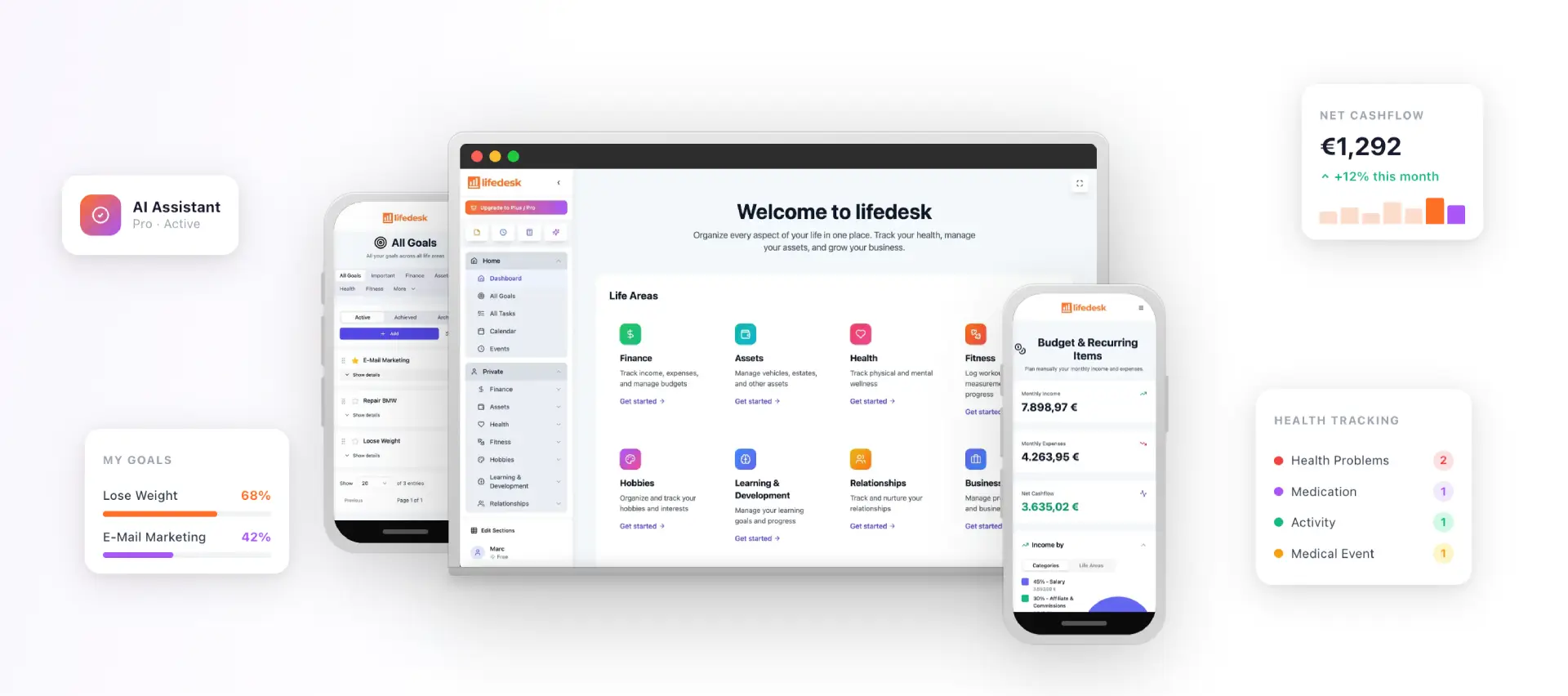
LifeDesk keeps tasks, calendar, and every other part of your work and personal life inside one app for web, iOS, and Android, so there’s no separate connector to authorize or token to refresh. The tasks and goals feature works the way the backlog-to-schedule pattern above describes: unscheduled items sit in a backlog until you pull them into a calendar slot.
Cross-domain automation is where the integration goes further than a typical task-calendar sync. LifeDesk’s calendar and finance integration automatically turns money events, like an invoice due date or a recurring payment, into calendar items, so financial deadlines show up alongside client work without manual entry. Paired with the AI assistant for converting emails into dated tasks, the same three-bucket workflow described earlier becomes largely automatic rather than a manual weekly chore.
Security and Privacy in Calendar Task Integration
Every calendar task integration involves handing some level of access to a third party, and that access deserves scrutiny before you click “allow.”
OAuth-based connections are generally safer than password-sharing because they grant scoped permissions and refresh tokens automatically rather than storing your actual login credentials. Still, scope matters. A connector requesting full calendar read/write access when it only needs to see one subcalendar is asking for more than it needs, and you should decline or narrow that permission if your provider allows it.
Task content itself can be sensitive. Client names, project details, and personal appointments all pass through whatever service handles the sync, so it’s worth checking whether that provider stores data on servers in a specific region, retains synced data after you disconnect, or shares it with other integrated tools. Enterprise and Workspace accounts add another layer: an administrator can see or restrict what syncs at the tenant level, which matters if you’re using a personal task app alongside a company calendar.
A practical habit: review connected apps periodically, since it’s easy to authorize a tool once and forget it still has access a year later. Revoke anything you no longer use. If you’re syncing client-related tasks, treat the connection with the same caution you’d apply to any tool touching confidential business data, and prefer platforms that keep task, calendar, and financial data under a single account structure rather than passing information between separate third-party services with their own retention policies.
Compatibility Across Calendar Platforms and Apps
Not every calendar speaks the same language, and that causes more friction than most people expect when they first connect two systems.
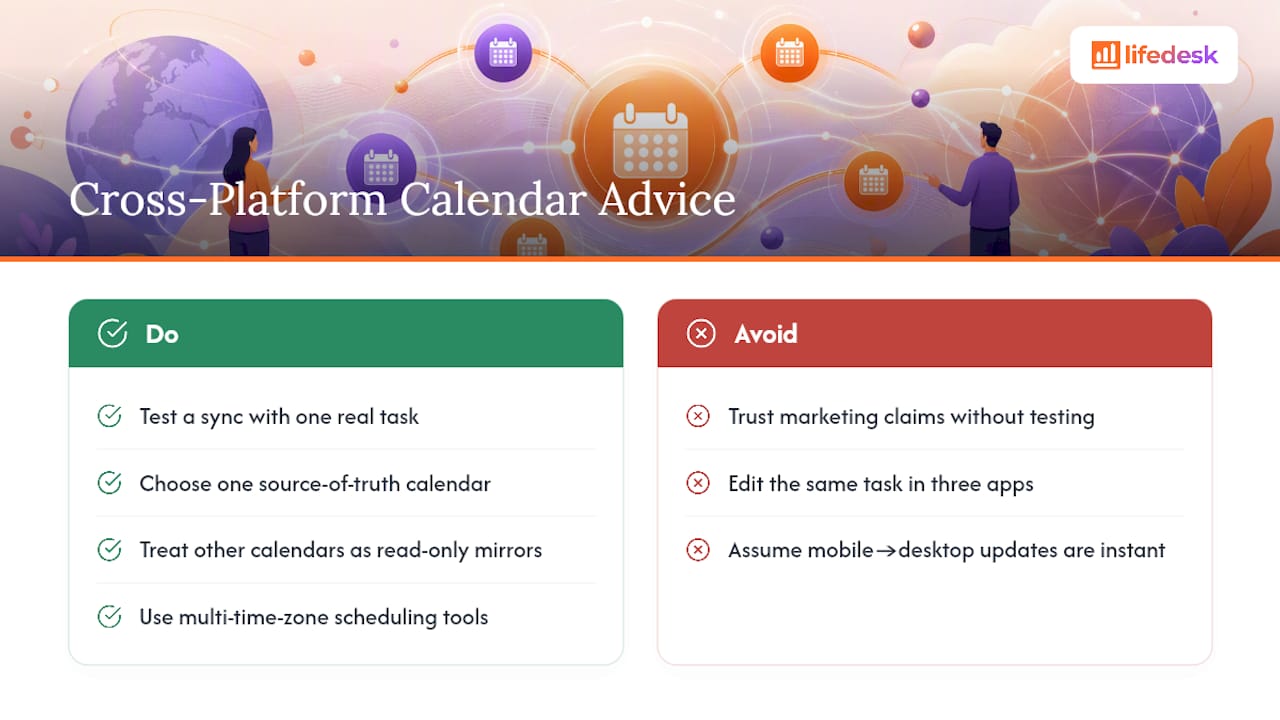
Google Calendar, Outlook, and Apple Calendar each handle recurring events, time zones, and task metadata slightly differently. A task synced from a third-party app into Google Calendar might show up as a clean timed block, while the same sync into Outlook renders as an all-day item because the underlying calendar standard, iCalendar (ICS), gets interpreted with small variations across providers. This is why testing a sync with one real task, as covered in the setup checklist above, matters more than trusting a provider’s marketing claims.
Mobile versus desktop can also behave differently. A task marked complete on a phone app should reflect instantly on a desktop calendar, but fetch intervals introduce lag. Some connectors poll for changes every few minutes rather than syncing instantly, so a task you just finished might still show as pending elsewhere for a short window.
Cross-platform teams face an added wrinkle: time zone handling. If you coordinate meetings or deadlines with people in other regions, small differences in how each calendar app calculates daylight saving transitions can shift a task’s displayed time by an hour. Tools built specifically for multi-time-zone scheduling address this directly, which is worth considering if international coordination is a regular part of your work.
The safest approach when mixing platforms is choosing one system as the source of truth for tasks and treating every other calendar as a read-only mirror of it, rather than trying to edit the same task from three different apps and hoping they all agree.
Automation and APIs for Custom Calendar-Task Setups
Beyond the built-in connectors most apps offer, an application programming interface (API) lets developers or technically inclined professionals build custom automation that off-the-shelf sync settings can’t match.
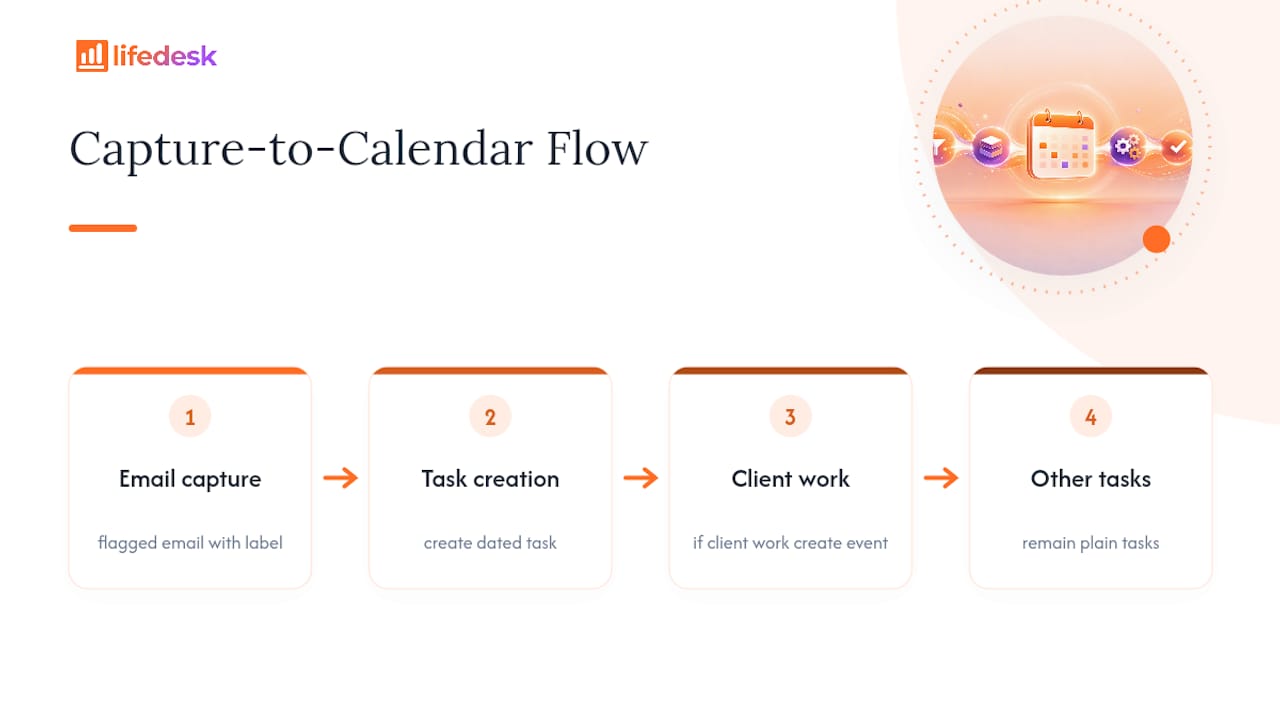
A common example: automatically converting every email flagged with a certain label into a dated task, then triggering a calendar event once that task is scheduled. This is the same three-bucket capture-triage-schedule pattern covered earlier, just automated end to end instead of done manually each morning. APIs also allow conditional logic that native sync settings don’t support, such as only creating a calendar block for tasks tagged “client work” while leaving personal reminders as plain tasks.
For businesses running multiple tools, API-driven automation can also solve the CRM-to-calendar gap. Platforms like HubSpot expose sync settings that write tasks to a chosen calendar as short events once configured correctly, but achieving more granular control, like routing different task types to different calendars, usually requires custom API calls layered on top of the standard integration.
The trade-off is maintenance. A custom API integration needs someone to monitor token expiration, handle rate limits, and update code when a provider changes its API version. For a solo professional, that overhead often isn’t worth it unless the automation saves significant weekly time. For a small team standardizing how client tasks flow into shared calendars, the investment tends to pay off faster, particularly when it eliminates the manual copy-paste of deadlines between a project tool and a calendar.
Stop Juggling Apps to Keep Your Calendar Accurate
If the setup steps above feel like a lot for something that should be simple, that’s because stitching together a separate task app, a calendar, and a finance tool usually is. LifeDesk exists because most professionals don’t want to manage three OAuth connections just to see their week clearly. It handles tasks, calendar, goals, and finances inside one account, so there’s no token to refresh and no subcalendar to configure.
The backlog-to-schedule workflow and the three-bucket email method described earlier work natively inside LifeDesk without a separate connector. The free plan gives you a real starting point for basic task and calendar organization, and the Plus and Pro tiers add features like bank account tracking and the AI assistant that turns emails into scheduled tasks automatically. If you’re ready to see whether one app can replace the two or three you’re currently syncing, check the feature overview and pick the plan that matches how much you want automated.
Usually not. Native tasks in Google Calendar often don’t register as “busy” the way events do, so if you need to show unavailability, convert the task into a timed event or focus block instead.
How Do I Sync Tasks From Two Different Accounts to One Calendar?
Connect each account separately through OAuth and route them into distinct subcalendars, then toggle visibility for each so you can see combined availability without merging the underlying task data.
What’s the Best Setup for Recurring Client Work?
Use a recurring calendar event for the client commitment itself, since events protect the time slot, and keep any prep or follow-up items as separate linked tasks you schedule individually each cycle.
Can I Avoid Duplicate Tasks When Editing on Both the Calendar and the Task App?
Test directionality with one item first: edit it on the calendar, then on the task app, and confirm each change updates the other side rather than creating a second entry.
Does LifeDesk Require a Separate Calendar Connector to Show Tasks?
No. LifeDesk keeps tasks, calendar, and finance events inside one account, so scheduling a task into a calendar block doesn’t require authorizing a third-party OAuth connection.