A hobby project planner is a tool, template, or notebook system that helps you capture ideas and, more importantly, always know your single next physical action. Right now, pick one tool, however basic, and write down the very next step for your current project....
AI agents reclaim your schedule by auto-scheduling tasks, defending focus blocks, and resolving conflicts before you even notice them, but only when you keep human-in-the-loop controls turned on. The strongest results come from task-first tools that unify your to-do...
AI goal planning converts a single sentence of intent, like “I want to get fit” or “I want a promotion,” into a measurable SMART goal with milestones, weekly tasks, and deadlines already attached. Within minutes, you get a concrete plan for the next seven days plus...
Calendar finance integration works best when you match the method to the job: native iCal feeds or a calendar-first finance app for visibility, middleware like Zapier or IFTTT for quick pilots, and API plus webhooks for anything running in production. Most finance...
A life management system is a compact loop: capture what hits you, prioritize it, schedule it, and review it on a set cadence. That’s the whole mechanism. Everything else, from Pomodoro timers to color-coded calendars, just fills in the loop. The single best first...
The best marketing planner for freelancers fits on one page, ties to a single measurable outcome, and runs on a weekly rhythm with a fixed monthly review. That’s it. No 40-tab spreadsheet, no funnel diagram with seventeen boxes. Just one page: who you serve, what...
Start with a simple template that has defined fields, a 4 to 6 week working window, and one owner per item. Assign a status to every entry (idea, draft, review, scheduled, published) so nobody has to ask “where is this?” in a Slack thread. Your next move: open a...
Run this every morning: scan your calendar for two minutes, pick three Most Important Tasks (MITs), assign each one a rough time block, add a 15% buffer, then lock the plan and walk away. That is a complete daily planning routine, and it takes 5 to 10 minutes if you...
A weekly planning routine that actually works comes down to three moves: reflect on last week, gather everything competing for your attention, then plan your top priorities into real time slots. Do it in that order and the whole thing takes 20 to 30 minutes for a...
Your net worth is total assets minus total liabilities — and tracking it over time turns a single number into a trend you can actually act on. Here’s how to get a working snapshot in the next hour, then keep it current in under 15 minutes a month. Quick-start steps:...
Professionals: Turn Emails Into Tasks With a 3 Bucket Workflow
The fastest way to turn emails into tasks is to use your inbox’s built-in conversion feature (Outlook’s drag-to-Tasks or Gmail’s Tasks panel) for one-off items, and automation rules for anything that repeats. Manual capture works fine at low volume; once the same type of email hits your inbox weekly, automate it. For professionals juggling both work and personal responsibilities, an integrated platform keeps captured tasks scheduled and tracked in one place instead of scattered across multiple apps.
TL;DR:
Automate email-to-task conversion for recurring requests like invoices or support tickets, but avoid automating infrequent or unpredictable patterns to save setup time.
Use a three-bucket system—Action, Waiting, Reference—to efficiently triage emails and prioritize tasks based on deadlines and impact rather than arrival time.
Incorporate a daily 15-minute review to process and reassign tasks, ensuring important follow-ups receive timely attention and outdated items are cleared.
Keep tasks focused by rewriting email subjects into specific actions, adding due dates upfront, and linking to original emails or attachments for clarity.
Route all captured tasks into a single integrated system that links email, calendar, and project management, preventing scattered workflows and overlooked deliverables.
LifeDesk
Bring Work And Life Into One View
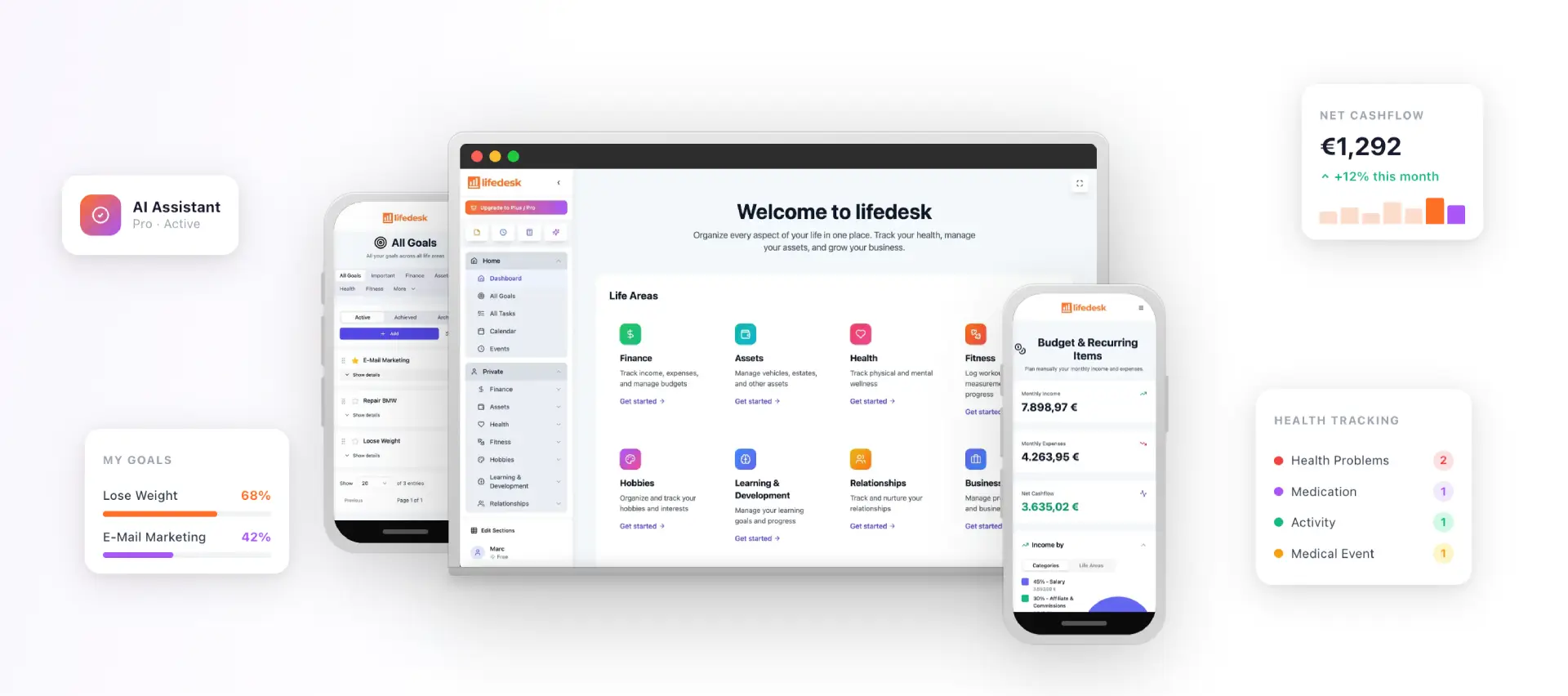
LifeDesk brings tasks, goals, calendars, finances, health, and professional planning together in one central platform.
How Do You Turn an Email Into a Task in Outlook and Gmail?
Both major clients have this built in. You don’t need a plugin for the basics.
In Outlook, drag any email onto the Tasks icon in the navigation pane (or drop it into Microsoft To Do if you have that integration active), and Outlook automatically creates a task carrying the email’s subject line and message body. Right-click the message instead if you’d rather not drag, and choose “Create Task” from the context menu. Flagging an email is the lighter-weight option: it adds the item to your To Do list with an optional reminder, without generating a full separate task record. One catch worth knowing: the exact steps shift depending on whether you’re on classic Outlook, New Outlook, or Outlook 365, and Microsoft’s own support forums are full of users tripped up by version differences, so it’s worth checking the official guidance for your specific version before assuming a shortcut still works.
In Gmail, open the Tasks side panel (the checkmark icon on the right rail) and drag an email directly into it, or use the “Add to Tasks” option from the More menu on an open message. Some Google Workspace setups also support forwarding to a dedicated tasks address, though this depends on your organization’s configuration.
A few habits make the captured task actually useful later, instead of just another vague line item:
Rewrite the subject line as a single, specific next action (“Send Q3 invoice to Dubois account”) rather than leaving the original email subject
Add a due date the moment you create the task, not later
Keep the attachment or a link back to the original thread so you’re not hunting for context
Note who’s waiting on you, if anyone, right in the task description
Skip any of these and you’ll end up with a task list full of entries that mean nothing three days later.
What’s a Simple Workflow for Converting Emails Into Tasks Every Day?
Individual conversions are easy. The hard part is doing it consistently without your inbox turning into a second, messier task list. The fix is a triage system with exactly three buckets:
Action — something you need to do, and only you can do it
Waiting — you’re blocked on someone else’s reply or deliverable
Reference — no action needed, but you might need to find this again
Every email that isn’t spam or noise gets sorted into one of those three within seconds of reading it. That sorting decision is the entire workflow.
From there, apply David Allen’s two-minute rule: if the action genuinely takes less than two minutes, do it immediately and archive the email. Anything longer gets converted into a task with a clear name and a due date, using the naming pattern from the previous section. This one rule alone eliminates the majority of “I’ll deal with this later” emails that pile up and rot in an inbox for three weeks.
Set a recurring 15 minute review, once daily at minimum, to process everything sitting in the Action bucket and reassign or close out anything in Waiting that’s gone stale. Weekly, do a broader sweep: anything still marked Waiting after seven days needs a follow-up nudge, not another week of silence.
Pro Tip:Name the task by the outcome, not the email. “Reply to Sarah” tells you nothing in three days. “Send Sarah the revised contract with new payment terms” tells you exactly what to open and what “done” looks like.
Which Automation Tools Actually Save Time on Email-to-Task Work?
Automation earns its setup time only when the same kind of email shows up repeatedly. Automating a one-off request is wasted effort. Automating your weekly invoice, support ticket, or order confirmation is where the time savings show up.
Four categories cover almost every use case:
Mail rules and forwarding. Set up a rule that forwards anything matching a pattern (sender, subject keyword) to a dedicated task inbox. Low setup cost, but limited metadata: you get the email, not a structured due date or priority.
Automation platforms. Tools like Power Automate let you build flows that create structured tasks from incoming email and map specific fields (sender, subject, attachment) to task properties, with conditional branching if the sender or content matches certain rules. This is where you’d handle something like “every invoice from this vendor becomes a task assigned to Accounting with a 30-day due date.”
Inbox-integrated boards. Drag-to-list tools that live inside your email client keep the task visible without forcing you to switch apps, which matters more than it sounds like when you’re processing 80 emails before 9 a.m.
AI extraction assistants. These parse an email and draft a task with a suggested due date and priority in one click. Convenient, but review the draft before confirming. AI is decent at spotting a due date buried in prose; it’s not perfect, and a wrong date on a client deliverable is worse than no automated task at all.
Automation works best on repeatable patterns where the team has agreed on what metadata maps to what field ahead of time, rather than improvising the mapping mid-flow. Skipping that agreement is the single most common reason automated task creation ends up creating noise instead of removing it.
One privacy note that gets skipped too often: avoid blanket auto-scanning of every inbound email, especially anything touching client contracts, health information, or financial details. Prefer a capture-on-confirmation model, where the automation drafts the task but a human confirms before it’s created, for anything sensitive.
Why Route Captured Tasks Into One Integrated System Instead of Three Apps?
Every email-to-task method above solves capture. None of them solve what happens next: scheduling that task against your actual calendar, tracking whether it got done, and remembering it existed a week later. That’s the gap between “converted an email” and “actually managed the work.”
The capture → schedule → review cycle only holds together when all three steps live in the same place. Capture a task in your email client, schedule it in a separate calendar app, and track it in a third tool, and you’ve traded inbox chaos for app-switching chaos. An integrated platform consolidates that cycle: tasks captured from email sit alongside your calendar, goals, and business projects, so a client request doesn’t disappear into a silo the moment you close your inbox.
Setting it up takes less time than reading this section:
Turn on inbox capture and create a dedicated “Email Capture” list inside your task and goal workspace
Block a recurring 10 to 15 minute daily review slot to process new captures
Route recurring email patterns (invoices, client check-ins) into automated follow-ups instead of manual re-entry
Link captured tasks to the relevant project so context doesn’t get lost between the email thread and the deliverable
Action
Time investment
Next step
Enable inbox capture
5 minutes
Create your Email Capture list
Set daily review slot
1 minute to schedule
Add to calendar, same time daily
Automate one recurring pattern
15 to 20 minutes
Map fields for invoices or check-ins first
How Should You Prioritize Tasks That Come From Email?
Email is a terrible prioritization tool because urgency in someone’s inbox has nothing to do with urgency in your actual workload. A vendor’s “quick question” and a client’s contract deadline can land three minutes apart and look identical in your task list unless you deliberately rank them.
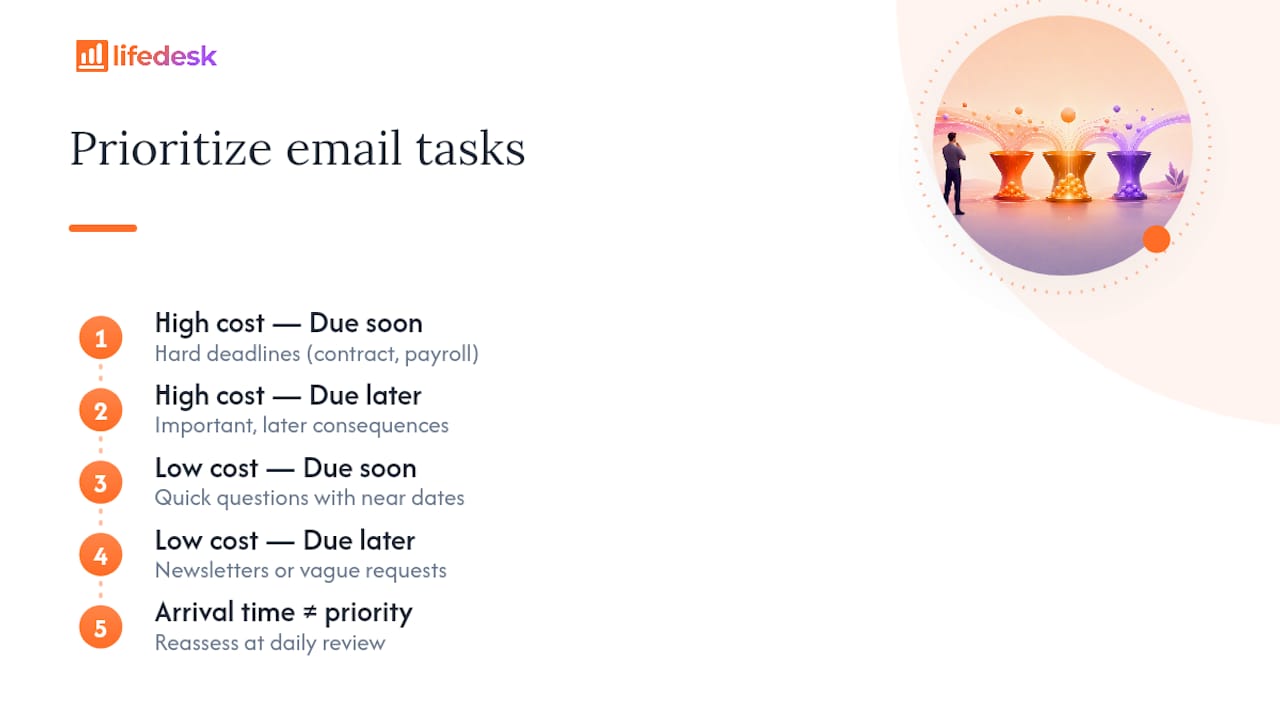
Score each converted task on two axes: how much it costs you if it slips, and how soon it’s due. A task with a hard deadline and real consequences (a signed contract, a payroll deadline) outranks anything vague, even if the vague one arrived first. Resist the instinct to work top-down by arrival time. That’s how a client’s urgent request sits behind a newsletter you meant to skim.
Batch by sender or type where you can. If three emails from the same client all convert into tasks, handle them as one block of focused work rather than three separate context switches spread across the day. Context switching between unrelated tasks is one of the biggest hidden time costs in email-driven work, even though it rarely shows up on anyone’s calendar as “lost time.”
Reassess priority at your daily review, not just at capture. A task that was low priority Monday can become urgent by Wednesday if a deadline moved. Static priority tags set once and never revisited are one of the fastest ways a task list stops reflecting reality.
How Do You Handle Follow-Ups and Reminders on Email-Derived Tasks?
Tasks converted from email tend to have a hidden dependency: you’re often waiting on someone else before you can finish. That’s exactly what the Waiting bucket from the triage workflow is for, and it needs its own reminder logic, separate from your regular task due dates.
Set a follow-up reminder for a fixed window after you send the original request. Three business days is a reasonable default for internal requests; a week is more realistic for external vendors or clients. When that reminder fires and you still haven’t heard back, send one short nudge and reset the clock rather than letting the task sit indefinitely.
Avoid stacking reminders on the same task without a plan. A task that pings you five times with no resolution isn’t a reminder system, it’s noise you’ll eventually start ignoring, which defeats the entire point. Instead, escalate: if a second follow-up gets no response, that’s the point to loop in a manager, switch channels, or flag the task as blocked rather than just re-notifying yourself.
For recurring follow-up patterns, like chasing signed documents or overdue invoices, a scheduled recurring task beats a manual reminder every time, since it removes the need to remember to set the reminder in the first place.
What Goes Wrong When People Try to Turn Emails Into Tasks?
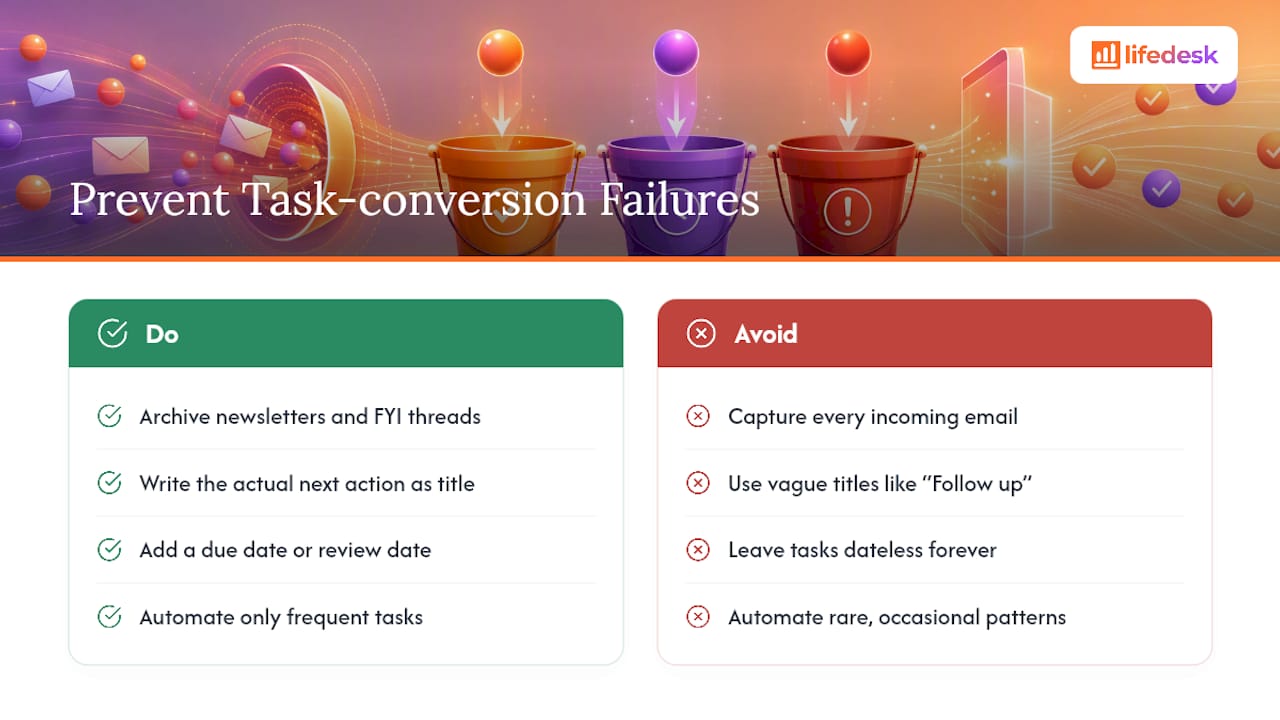
The most common failure is capturing everything. Not every email deserves a task. Newsletters, FYI threads, and anything you’re only copied on for visibility should get archived or filed to Reference, not converted. A task list padded with non-actions is worse than no task list, because it trains you to stop trusting it.
The second failure is vague task titles. “Follow up with Marco” tells future-you nothing about what “follow up” means or why it matters. Write the task as the actual next action, the way covered earlier, or you’ll open it in three days and have to reread the original email anyway, which defeats the entire purpose of converting it.
Third: missing due dates. A task with no due date isn’t a task, it’s a wish. If you genuinely don’t know the deadline, set a review date instead, a point where you’ll check whether it’s still relevant, rather than leaving it dateless forever.
Fourth, and this one catches automation users specifically: over-automating low-frequency patterns. Building a Power Automate flow for something that happens twice a year usually costs more setup time than it ever saves. Save automation for genuinely repeatable traffic.
Finally, watch for orphaned attachments. A task created from an email sometimes loses its link back to the original thread, especially with quick drag-and-drop methods across different clients. Always confirm the task retains a working link or copy of the attachment before you archive the source email, or you’ll be searching your entire mailbox for a file you know exists somewhere.
Turn Your Inbox Into a Working System With LifeDesk
Forwarding rules and inbox add-ins solve capture, but they stop there, and a client request converted into a task at 9 a.m. still needs a calendar slot, a priority, and someone checking it got done. This kind of platform closes that loop for freelancers and professionals managing both client work and personal commitments in the same day: capture, scheduling, and tracking live in one workspace instead of split across your inbox, a calendar app, and a separate to-do list.
The setup mirrors the workflow already covered above. Turn on inbox capture, route emails into a dedicated task list, and let the AI productivity assistant help draft priorities and due dates from what you’ve captured. Recurring client work slots into project tracking automatically, so a converted email doesn’t sit disconnected from the deliverable it’s actually tied to. If you’re also tracking business finances, goals, or personal commitments alongside client tasks, that all lives in the same view rather than a fourth app you have to remember to check.
Start with the tasks and goals workspace and set up your first Email Capture list today. It takes less time than triaging tomorrow’s inbox.
Outlook Tasks is transitioning into Microsoft To Do as Microsoft’s primary task management tool, and the two are already integrated in current versions, but task creation from email in Outlook itself still works as documented in Microsoft’s support guidance.
Can You Turn an Email Into a Task in Gmail?
Yes. Open the Tasks side panel and drag the email into it, or use “Add to Tasks” from an open message’s menu, and Gmail carries over the subject and a link back to the original email.
How Do I Turn an Email Into a Task in Outlook 365?
Drag the email onto the Tasks icon in the navigation pane, or right-click it and select “Create Task,” and the new task will include the email’s subject and body content automatically.
Can I Create a Task From an Email in New Outlook?
Yes, though the exact menu location shifts from classic Outlook, so check Microsoft’s version-specific guidance if the drag-and-drop option isn’t where you expect it.