A client retention plan is a short set of repeatable habits for every stage of a client relationship, from the first welcome message to the follow-up after the project ends. For a freelancer, the plan that works is the one you can run in about 20 minutes a week: one...
A good color-coded calendar uses three to five colors, gives each color one meaning, and keeps those colors identical on every device. If you can look at your week for three seconds and see where work, personal time, deadlines and focus blocks sit, the system is...
Yes, AI can take your meeting notes. It records or listens to the call, turns speech into a transcript, and has a language model write a summary and a list of action items. The tools are the easy part. What decides whether AI meeting notes help you is what happens...
A CRM with a calendar puts your client records, meetings, tasks and follow-ups in one place, so every call you schedule is tied to the person and the deal behind it. For a freelancer or solo business owner, the best choice is the one that shows your client work next...
AI can turn your income, bills and goals into a working monthly budget in minutes. It can also categorize spending, explain budgeting methods and test “what if” scenarios. It works best when you give it real numbers, tell it which method to use, and check the output...
A recurring task is any piece of work that comes back on a pattern: the weekly invoice run, the Tuesday workout, the monthly tax set-aside, a client’s birthday. The best way to manage them is to decide two things for each one: what triggers the next copy (the calendar...
A life operating system (often shortened to Life OS) is one connected setup where your goals, projects, tasks, calendar, notes, money and habits live together and inform each other. A to-do list only stores actions. A life OS also tells you why those actions matter...
The most reliable way to plan work and personal life together is to stop splitting them. Write every commitment into one inventory, put it on one calendar, rank it by importance and urgency, give it a block of time, and review the plan weekly. The rest of this guide...
A calendar time audit is a review of what your calendar says you did over the past few weeks, set against what you say matters. You export or scroll back through four to eight weeks, sort every block into a handful of categories, add up the hours, and compare the...
TL;DR A goal only becomes real when it has a date, a duration and a place on the calendar. Recurring blocks are one of the simplest ways to do this. Structure goals in layers: one or two main missions, projects that act as milestones, and daily actions. Plan, then...
Invoice Tracking App for Freelancers and Small Businesses
For freelancers and small-business owners, LifeDesk’s business finance tools provide invoice creation, status tracking, payment reconciliation, and time tracking in one place across web, iOS, and Android. Sign up, connect a payment method, and send a test invoice. That’s the whole setup. The rest of this guide explains what to look for, how to evaluate your options, and exactly how to run an invoice from estimate to payment.
Key Takeaways
The most practical invoice tracking setup for freelancers and small-business owners combines invoice creation, status tracking, payment links, and time tracking in one app, with bank sync added when volume justifies the upgrade.
Point
Details
Choose integrated tools
Pick an app that converts estimates, tracks billable hours, and matches payments automatically.
Track every status
A good app shows draft, sent, viewed, partially paid, paid, and overdue states in real time.
Verify payment integrations
Confirm Stripe, PayPal, or ACH support before committing to any platform.
Upgrade when reconciliation hurts
Move to a paid plan when manual matching eats more than an hour a month.
LifeDesk as your starting point
LifeDesk combines invoicing, time tracking, and client management in one free-to-start platform on web, iOS, and Android.
An invoice tracking app, sometimes called invoicing software or billing management software, handles the full lifecycle from creating a document to confirming cash in your account. Here’s what that covers in practice:
Create and brand invoices on mobile or web, with your logo, payment terms, and line items, then send by email or through a client portal.
Track status at every stage: draft, sent, viewed, partially paid, paid, overdue, voided, or written off. Everhour’s invoice tracking guide details the specific fields a solid app should store: seller and buyer info, sequential invoice number, due date, line items, tax lines, payment history, and delivery record.
Accept payments via embedded card links, ACH transfers, or connected processors like Stripe and PayPal.
Support recurring invoices and auto-billing for retainer clients, and convert approved estimates directly into invoices.
Attach time entries and expenses to invoices so billable hours flow in without manual re-entry.
Export or sync to accounting software or bank feeds for reconciliation at tax time.
The highest-value tools remove manual handoffs entirely, converting estimates to invoices automatically and matching payments to invoices via bank or payment integrations, according to Forbes Advisor’s invoicing software rankings.
How do you choose the right invoice tracking app?
Start with must-haves, then layer in secondary features. Here’s a prioritized framework:
Must-have features
Feature
Why it matters
Invoice status tracking
Tells you exactly which invoices are overdue, viewed, or partially paid without manual checking
Embedded payment links
Clients pay in one click; removes the “I’ll pay later” delay
Recurring billing
Automates retainer and subscription invoices so nothing gets missed
Time/expense conversion
Tracked hours flow into invoices with no re-entry
Mobile app (iOS/Android)
Send and check invoices from anywhere, not just your desk
Branded templates
Professional appearance builds client trust and reduces disputes
Client portal
Clients can view and pay invoices in one place; reduces email back-and-forth
Secondary features worth checking
Bank reconciliation, QuickBooks or Xero exports, multi-currency support, tax line handling, and 1099/contractor support all matter once your volume grows. They’re not day-one requirements for most freelancers, but skipping them entirely can create painful manual work at year-end.
Questions to ask before signing up
How many invoices does the free plan allow? What are the transaction fees on top of your subscription? What support channels exist (chat, email, phone)? Can you export your data if you leave? What’s the dispute or chargeback process?
Red flags
No payment integrations, no status tracking beyond “sent/paid,” manual-only reconciliation, and undisclosed transaction fees are all signs the app will create more work than it saves. Forbes Advisor specifically flags integrated payments and client portals as key differentiators when evaluating invoicing tools.
How do you track an invoice from estimate to payment?
This five-step workflow covers the full cycle. Follow it the first time you use any billing app.
Create an estimate or quote. Include your terms, line items, rates, and due date. Locking these in upfront prevents scope disputes later.
Convert the estimate to an invoice when the client approves it, or create a new invoice and attach your tracked time and expense entries. This is where a time tracker integration pays off: your billable hours feed directly into the invoice without retyping.
Send the invoice with an embedded payment link and set a due date. Configure automatic reminders at 3 days before due, on the due date, and 7 days after.
Monitor status. Check when the invoice was viewed, whether a partial payment came in, and when the full amount reconciles against your bank feed.
Escalate overdue invoices with a dunning cadence: a polite reminder, a firmer follow-up, and a final notice before involving collections. Keep every message in the communication trail. Automated dunning sequences can meaningfully lower days sales outstanding for small businesses that use them, according to HelloBooks’ invoice management documentation.
Pro Tip:Always send a test invoice to yourself or a teammate before going live with a client. Confirm the payment link works, the branding looks right, and the confirmation email arrives. Catching a broken payment route before a real invoice goes out saves an embarrassing follow-up.
How does LifeDesk handle invoice tracking?
LifeDesk maps directly to the must-have criteria above. Here’s how each feature lands for freelancers and small-business owners:
Feature
LifeDesk capability
Why it matters for you
Invoice creation
Create branded invoices on web, iOS, or Android
Send from your phone between client calls
Invoice status tracking
Track draft, sent, viewed, paid, and overdue states
Know exactly who owes you without manual follow-up
Built-in client CRM with contact records and history
Invoice history lives alongside client communication
Finance workspace
Unified business finance tracking
Invoices, expenses, and payments in one dashboard
Onboarding takes about 10 minutes. Create your account, add your business name and logo, set your tax and payment options, import your client list, build a template, and send a test invoice. The free plan covers basic invoicing. Upgrade to Plus or Pro when you need bank account connections, automated reconciliation, or higher client and invoice limits. Check the LifeDesk pricing page for current tier details.
For security and privacy details, LifeDesk’s privacy and policy pages are accessible directly from the platform. Support resources and documentation are available through the LifeDesk blog and in-app help.
What should you expect from pricing and plan structures?
Most invoice tracking tools follow a predictable shape: a free tier for low-volume invoicing, paid tiers that unlock automation and integrations, and transaction fees from payment processors that apply regardless of plan.
Free tiers typically cap invoices per month, limit clients, and exclude bank connections and automated reconciliation. Fine for a freelancer sending 3–5 invoices a month.
Paid tiers usually add bank sync, client portals, recurring billing automation, and higher or unlimited invoice counts. The upgrade is worth it when manual reconciliation is eating more than an hour a month.
Transaction fees are separate from your subscription. Card processing typically runs around 2.9% plus $0.30 per transaction through processors like Stripe. ACH transfers cost less. These fees come from the payment processor, not the invoicing app itself, but some apps add their own layer on top.
Hidden costs to watch: chargeback and dispute fees, export or integration fees, and per-user pricing that multiplies quickly if you add a bookkeeper or VA.
The ROI calculation is straightforward: if faster payment collection and less manual reconciliation save you time each month, a moderate-cost paid plan pays for itself quickly.
Which integrations and payment gateways should you verify before signing up?
Integration type
What to confirm
Why it matters
Payment processors
Stripe, PayPal, or native card processing supported
Clients need a one-click pay option
Bank feeds
Direct bank sync or open banking connection
Automatic payment matching cuts reconciliation time
Accounting exports
QuickBooks or Xero export (CSV at minimum)
Clean handoff at tax time
CRM/client records
Client data syncs with invoice history
No duplicate data entry across tools
Time tracking
Billable hours push to invoices automatically
Protects revenue from unbilled time
Before committing to any app, run a quick integration test: send a test invoice, make a test payment, and confirm the transaction appears in your bank feed or accounting export. Check that webhooks fire correctly and that payment confirmation emails arrive. Automated bank syncing keeps receipts, invoices, and payments matched to transactions and ready for export, which is the core of clean bookkeeping.
What security basics should you check in an invoice app?
Control
What to look for
Data encryption
Encryption in transit (TLS) and at rest
Payment security
PCI-compliant payment processing through a certified gateway
Privacy disclosure
Clear privacy policy; check app store data safety sections before installing
Access controls
Role-based permissions and audit logs for multi-user accounts
Data retention and export
Ability to export your records for tax or audit purposes
Google Play’s privacy and terms policies require app developers to disclose data handling practices on their listings. Check the “Data safety” section of any mobile invoice app before installing. For desktop and web apps, look for a published privacy policy that explains where backups are stored and how data is handled if you cancel.
How do you get set up and invoicing in 10 minutes?
Sign up and add your business identity: logo, business name, remit-to address, and tax ID if applicable.
Add your first client entry with contact details and default payment terms (Net 15, Net 30, or due on receipt).
Create a branded invoice template with your standard line items, tax lines, and footer notes.
Connect a payment method: link Stripe or another card processor, or add a manual payment link.
Import or enter any tracked time or expenses and attach them to the invoice.
Send a test invoice to yourself, confirm the payment flow works end to end, and enable automatic payment reminders.
That’s it. Your first real invoice can go out the same session.
LifeDesk brings invoicing, time tracking, and client management together
Separate apps for invoicing, time tracking, and client records create friction. You end up copying hours into invoices manually, chasing payment status across three tabs, and reconciling bank transactions by hand at month-end.
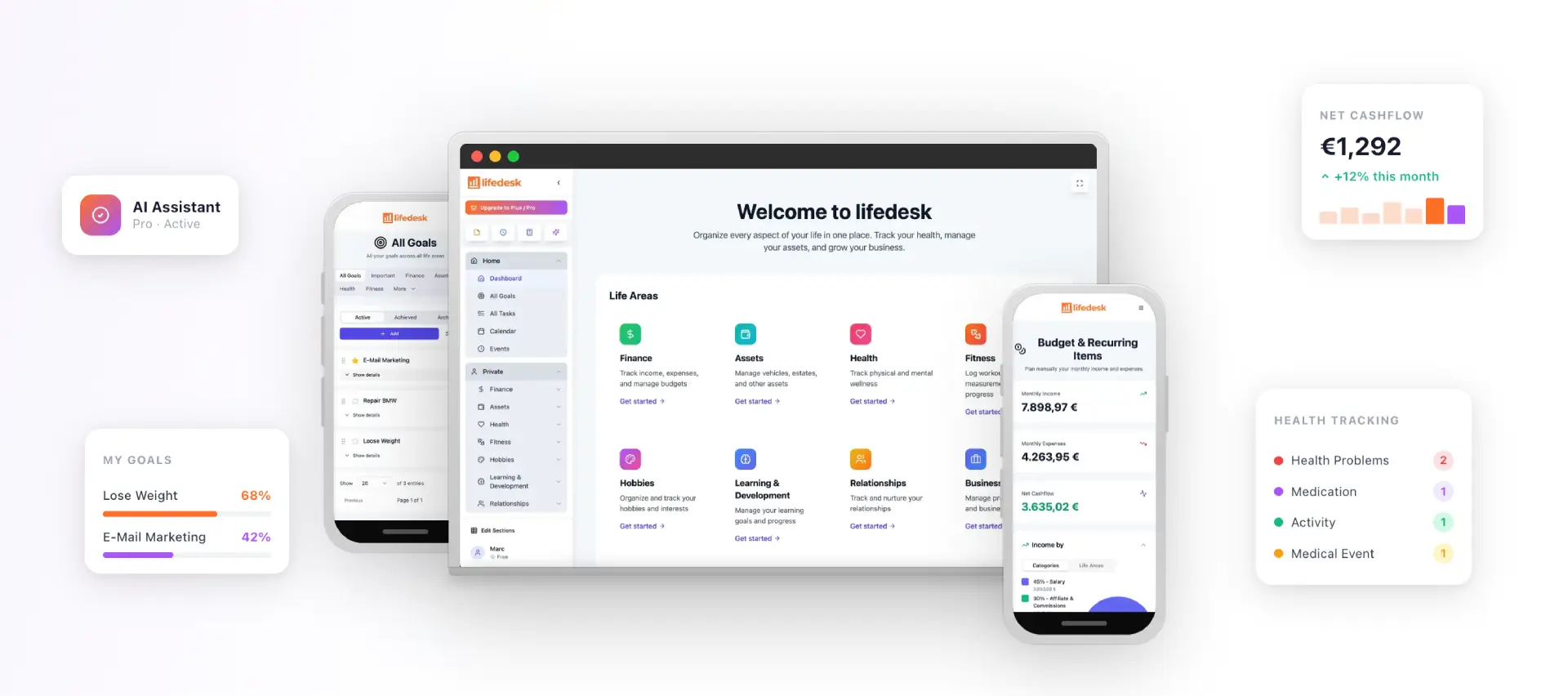
LifeDesk handles all of it in one place. The business finance features cover invoice creation and status tracking. The built-in time tracker captures billable hours that flow directly into invoices. The client CRM keeps your contact records and invoice history together. And the whole platform runs on web, iOS, and Android, so you can send an invoice from your phone between meetings.
The free plan is a real starting point, not a demo. When you’re ready for bank connections and automated reconciliation, the paid tiers add them without forcing a platform switch. Start your LifeDesk account today, connect a payment method, and send your first invoice in under 10 minutes.
LifeDesk offers a free plan that covers invoice creation, status tracking, and client management on web, iOS, and Android, making it a practical starting point for freelancers and small-business owners with moderate invoice volume.
What is the best way to track invoices and payments?
Use an app that shows real-time invoice statuses (sent, viewed, partially paid, overdue) and matches incoming payments to invoices automatically via bank sync or payment processor integration, eliminating manual reconciliation.
Is there a free invoice tracking app I can download?
Yes. LifeDesk is available on iOS and Android with a free tier that includes core invoicing features. Check the app store’s “Data safety” section before installing any mobile invoice app to review its privacy practices.
What software can I use to track invoices?
LifeDesk covers invoice creation, status tracking, recurring billing, and time tracking in one platform. For businesses needing deeper accounting integration, look for apps that export to QuickBooks or Xero and support direct bank feeds.