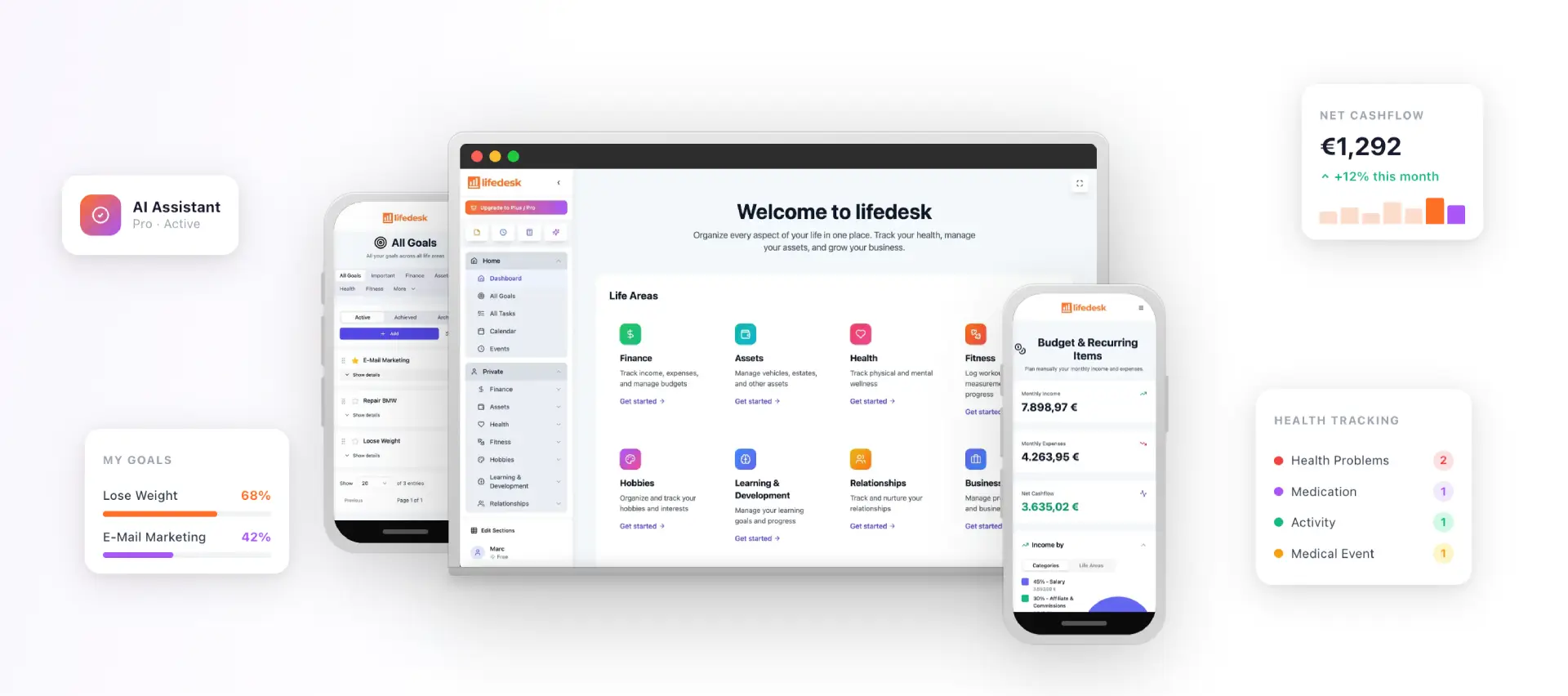
Project and client management work best as two linked systems, not one blurred job. Delivery lives on scope, schedule, and resourcing; the relationship lives on trust, expectations, and retention. Agencies that connect them, with a shared client record and a fixed...
Calendar task integration turns your to-do list into scheduled, time-bound calendar blocks so work actually gets done instead of piling up unseen. The fastest path is either a native tasks layer inside your calendar app or an OAuth-based connector syncing a separate...
Quarterly planning means running your business goals on a 90-day cycle instead of a single annual push, reviewing progress and adjusting course every quarter. The practical version that works best: pick a few measurable priorities, assign a clear owner to each, set...
Most people don’t need one framework. They need three, stacked by time horizon: a long-range direction setter like a BHAG or OGSM, a quarterly execution engine like OKRs, and SMART criteria to keep the resulting key results honest and measurable. Skip the strategic...
The PARA method sorts every file, note, and task you own into four folders (Projects, Areas, Resources, Archives) based on how soon you need to act on it. The main payoff is speed: you stop hunting through nested folders and start finding what you need in seconds,...
The best prioritization frameworks for anyone juggling client work, personal goals, and everything in between are the Eisenhower Matrix, the Pareto principle (80/20), the 1-3-5 Rule, time blocking, and a weekly review. Pick one today: schedule a 90-minute protected...
The fastest way to turn emails into tasks is to use your inbox’s built-in conversion feature (Outlook’s drag-to-Tasks or Gmail’s Tasks panel) for one-off items, and automation rules for anything that repeats. Manual capture works fine at low volume; once the same type...
A hobby project planner is a tool, template, or notebook system that helps you capture ideas and, more importantly, always know your single next physical action. Right now, pick one tool, however basic, and write down the very next step for your current project....
AI agents reclaim your schedule by auto-scheduling tasks, defending focus blocks, and resolving conflicts before you even notice them, but only when you keep human-in-the-loop controls turned on. The strongest results come from task-first tools that unify your to-do...
AI goal planning converts a single sentence of intent, like “I want to get fit” or “I want a promotion,” into a measurable SMART goal with milestones, weekly tasks, and deadlines already attached. Within minutes, you get a concrete plan for the next seven days plus...
The Best Billable Hours Tracker for Freelancers in 2026
For most freelancers and small teams, the fastest defensible pick is LifeDesk’s integrated Time Tracker: it ties time entries directly to projects, clients, and finance features so you can go from timer to invoice inside one account. If you need something running in the next five minutes with zero sign-up, a spreadsheet works fine as a fallback. Either way, start with these three steps:
Start a timer or add a row. Hit start in your app, or open your spreadsheet and enter today’s date.
Tag the client and project. Every entry needs a name attached before you save it.
Set the hourly rate. Lock in the rate per project now so billing math is automatic later.
That’s the whole system at its core. Everything below makes it more accurate, more defensible, and easier to scale.
Key Takeaways
The most reliable billable hours system combines a consistent naming habit, per-project rates set at the start, and a weekly review before any invoice goes out.
Point
Details
Start immediately
Use LifeDesk Time Tracker or a spreadsheet; tag client, project, and rate before saving any entry.
Prioritize three features
Timers, per-project rates, and CSV export cover most freelancer billing needs from day one.
Move off spreadsheets when
Multiple collaborators, approval workflows, or weekly invoicing make manual tracking a revenue risk.
One habit protects billable time
Name every entry “Client — Project — Task” before saving; it makes reviews, invoices, and disputes faster.
LifeDesk for integrated tracking
LifeDesk ties time entries to projects, finance, and invoicing in one account, removing the need for separate tools.
What features make a billable hours tracker actually reliable?
The difference between a tracker that pays off and one that creates extra work usually comes down to five or six specific features. Reviews consistently flag per-project rate configuration, invoicing, and reporting as the features that determine whether a tool is genuinely useful for agencies and consultancies, not just for logging hours.
Here’s what to look for, in rough priority order:
Timers with manual override. Auto-start timers catch time in real time; manual entry covers the calls and tasks you forgot to clock. Tools that combine both capture more billable time and produce fewer billing errors than timer-only or manual-only setups.
Per-client and per-project rates. A flat hourly rate is fine for one client. Once you have three clients at different rates, you need rate configuration at the project level or you’ll be doing math by hand every invoice cycle.
Billable vs. non-billable flags. Internal meetings, admin, and business development time should never appear on a client invoice. A flag on every entry keeps those categories separate without extra cleanup.
Start/stop timestamps. Totals alone don’t hold up to client questions. Timestamps give you an audit trail.
Multi-platform sync. You track time on your laptop, your phone, and sometimes a client’s machine. If entries don’t sync, you’ll have gaps.
Export to CSV, PDF, or invoice. Tracked time is worthless if you can’t get it out in a format clients and accountants accept.
Reporting by client, project, and billable status. This is where you spot scope creep, underpriced projects, and utilization problems before they cost you money.
Rounding rules. Legal and consulting clients often bill in 6-minute or 15-minute increments. Your tracker should handle that automatically, not in a spreadsheet after the fact.
Integrations. Connections to accounting tools (QuickBooks, FreshBooks) and calendar apps reduce double-entry and keep records consistent.
Multiple currencies. If you bill international clients, this is non-negotiable.
Priority by reader type: A solo freelancer with two or three clients needs timers, per-project rates, and CSV export first. A small agency adds approval workflows and multi-user reporting. A law firm needs matter codes, precise timestamps, and narrative descriptions on every entry.
Pro Tip:When budget or adoption is the constraint, prioritize in this order: timers + rates + export. Everything else can be added later. A tracker with those three features used consistently beats a feature-rich tool nobody opens.
App or spreadsheet: which one fits your situation right now?
Both work. The question is which one fits your current complexity.
Three questions to decide right now:
How many active clients do you have? One to three: a spreadsheet is fine. Four or more: an app pays for itself in time saved.
Do multiple people need to log time on the same project? If yes, skip the spreadsheet entirely.
How often do you invoice, and do clients ever push back on charges? Monthly invoicing with no disputes: spreadsheet works. Weekly billing or any history of client questions: you need timestamps and exportable reports.
Solo freelancer with 1–3 clients: A well-built spreadsheet template handles this cleanly. The ManyRequests guide walks through the exact column setup.
Small agency billing multiple team members: You need a real app. Shared spreadsheets break down fast when two people edit the same file or when you need to approve entries before invoicing.
Law firm needing defensible records: An app with matter codes, precise timestamps, and narrative fields is the only practical option. Spreadsheets can’t produce the audit trail legal billing requires.
How to track billable hours the right way, from setup to invoice
This workflow takes about 20 minutes to set up once, then runs on daily habits.
Setup (do this once)
Create a client list. Add every active client by name. This becomes the tag you attach to every time entry.
Create projects under each client. “Acme Corp — Website Redesign” and “Acme Corp — Monthly Retainer” are two separate projects with potentially different rates.
Set the hourly rate per project. Lock it in now. If a project has a fixed fee, note the equivalent hourly rate so you can track against budget.
Configure billable vs. non-billable categories. Create at least two: billable work and internal/admin.
Daily practice
Start a timer before you begin a task. Name it immediately: client, project, short task description. “Acme Corp — Website — Homepage QA” takes five seconds to type and saves ten minutes of reconstruction later.
Stop the timer when you switch tasks or take a break. Don’t let timers run through lunch or between tasks. A two-hour block that was actually 90 minutes of work and 30 minutes of email is a billing error waiting to happen.
Add manual entries for anything you forgot to clock. A phone call, a quick review, a client Slack thread. If it’s billable, it goes in.
Write a short description on every entry. One sentence: what you did and for what purpose. “Reviewed and revised homepage copy per client feedback” is enough. “Work” is not.
Weekly review
Filter by client and review all entries for the week. Look for missing entries, duplicate timers, and vague descriptions.
Lock or approve entries. Once an entry is approved, it shouldn’t change. This protects you if a client questions a charge weeks later.
Invoicing
Export the time report grouped by client and project.
Verify each line item: client name, project, date, duration, rate, billable flag, and description. Fix anything that looks wrong before it reaches the invoice.
Apply rounding if required. Round up to the nearest increment your agreement specifies (6 minutes, 15 minutes, etc.).
Generate the invoice or import the export into your accounting tool.
Before you send any invoice, check: Is every line item billable? Does the description make sense to someone who wasn’t in the room? Does the total match what you’d expect given the project scope?
For defensible billing, record start and stop times on every entry, not just totals. When a client questions a charge, timestamps are the difference between a quick resolution and a long email thread.
Free templates and quick tools to start tracking right now
You don’t need software to start today. A spreadsheet with the right columns handles basic billable-hour tracking well, and a browser timer covers the gap when you’re not at your main machine.
Building a spreadsheet template
A practical billable-hours template needs these columns:
Date (formatted as MM/DD/YYYY)
Client
Project
Task description
Start time and End time (or a single Duration column in decimal hours)
Hourly rate
Billable? (Yes/No or a checkbox)
Amount (formula: =Duration * Rate)
For duration from start/end times: =(End - Start) * 24 in Excel or Google Sheets gives you decimal hours. A weekly total row with =SUM() on the Amount column gives you the invoice subtotal instantly.
You can also download a pre-built template that includes these columns and formulas already configured, which saves the setup time entirely.
Pro Tip:Add a “Status” column (Uninvoiced / Invoiced / Paid) and filter by “Uninvoiced” before every billing cycle. That one column prevents you from accidentally billing the same time twice or missing entries that slipped through.
Browser-based timer as a quick fallback
A browser billable-hours clock lets you track elapsed time, apply rounding increments, and compute subtotals by rate without signing up for anything. It’s useful for one-off client calls or when you’re working on a machine that doesn’t have your main app installed.
When to move off spreadsheets
Three signals that a spreadsheet is costing you money:
A second person needs to log time on the same project.
You need someone to approve entries before invoicing.
You’re spending more than 30 minutes per invoice cycle cleaning up and formatting data.
How to turn tracked time into accurate invoices clients will pay
The gap between a time log and a paid invoice is usually a formatting and clarity problem, not a math problem.
The conversion workflow
Group entries by client, then by project. Every client gets their own invoice; every project gets its own section within that invoice.
Verify dates and descriptions. A vague entry (“misc work — 3 hours”) will generate a client question. Fix it before it leaves your desk.
Apply rates and rounding. Confirm the rate matches the agreement for that project. Apply any contractual rounding (e.g., round up to the nearest 0.25 hours).
Build invoice line items. Each line should read like this: “Project: Website Redesign — Homepage QA — 2.25 hours @ $95/hr = $213.75.” That format answers every question a client might have before they ask it.
Attach or export the time report. Many clients want the underlying time log attached to the invoice as a backup. Export it as a PDF or CSV and include it.
Export and integration options
CSV export works for any accounting tool that accepts imports (QuickBooks, FreshBooks, Wave).
PDF export is the cleanest option for attaching to invoices as a supporting document.
Direct invoicing from an app skips the export step entirely and pulls time entries straight into invoice line items.
Track uninvoiced vs. invoiced time as a separate status field. That distinction feeds directly into revenue forecasting: you can see what’s earned but not yet billed and plan cash flow accordingly.
For readers comparing scheduling and payroll integrations alongside time tracking, this overview of QuickBooks Time alternatives covers how different tools handle the handoff between time logs and payroll or accounting systems.
Best practices and common mistakes that cost freelancers real money
Most billing leakage doesn’t come from undercharging. It comes from time that was worked but never logged, or logged but never invoiced.
Do:
Tag every entry with a client and project before saving it. An untagged entry is almost impossible to assign correctly later.
Write a one-sentence description on every billable entry. Short, specific descriptions reduce client pushback and speed up invoice approval.
Lock entries after weekly review. Once locked, they don’t change.
Export and back up your time data monthly, regardless of what tool you use.
Don’t:
Let timers run through breaks, lunch, or context switches. A timer that ran for six hours when you worked four is a billing error and a trust problem.
Use vague descriptions like “work,” “meeting,” or “tasks.” These fail client review and make your own records useless for project analysis.
Mix billable and internal time without flags. If you can’t filter one from the other, your utilization numbers are wrong and your invoices may be too.
Forget to set rates per project before you start tracking. Retroactively assigning rates is error-prone and time-consuming.
Common mistakes:
Failing to configure per-project rates at setup, then doing rate math manually at invoice time.
Skipping the weekly review and trying to reconstruct a month of entries from memory.
Invoicing directly from raw exports without verifying billable flags, which can accidentally include internal time on client invoices.
Pro Tip:Name every entry before you save it, using the format “Client — Project — Task.” That three-part habit takes four seconds and makes every weekly review, every invoice, and every client conversation faster. It also makes scope creep visible: when you see “Acme Corp — Website — Revisions” appearing 14 times in a month on a fixed-fee project, you have the data to have that conversation.
Scope creep shows up clearly in time reports. A project budgeted for 20 hours that shows 31 logged hours by week three is a signal to renegotiate or set a boundary, and you only see it if your entries are tagged and your reports are reviewed.
How attorneys and law firms track billable hours
Legal billing has stricter requirements than most freelance or consulting work. The standard isn’t just “log your time” — it’s “log your time in a way that survives client review and, if necessary, a fee dispute.”
A compliant legal time entry includes:
Matter code. Every entry ties to a specific client matter, not just a client name.
Date. The exact date the work was performed, not the date it was entered.
Duration to the required increment. Most firms bill in 6-minute increments (0.1 hours). Some bill in 15-minute increments. The increment is set by firm policy or client agreement, and entries must conform to it.
Activity description. A narrative that explains what was done in plain language: “Reviewed draft motion to dismiss; drafted response to opposing counsel’s objections re: standing.” Vague entries like “legal research” or “phone call” don’t hold up in bill review.
Billing rate. The rate applicable to that timekeeper for that matter.
Billable status. Some time on a matter is non-billable (courtesy write-offs, administrative tasks). Flag it clearly.
Rounding in legal billing typically rounds up to the nearest increment, but the convention must be disclosed to the client. Billing 0.3 hours for a two-minute phone call is a common source of client complaints and, in some jurisdictions, an ethics issue. The defensible approach is to record actual time and apply the firm’s stated rounding policy consistently.
Per-entry descriptions and matter codes matter beyond billing. They create an audit trail for malpractice defense, fee arbitration, and internal profitability analysis by practice area.
LifeDesk Time Tracker: why it fits freelancers and small teams
LifeDesk’s Time Tracker sits inside the Quick Tools module and connects directly to the platform’s project, task, and finance features. That integration is the practical difference from a standalone timer: you track time, attach it to a project, and generate an invoice or export a CSV without switching apps or copying data between tools.
Feature parity with the checklist
Five steps to get started
Create a project in LifeDesk and attach it to a client.
Set the hourly rate for that project in the project settings.
Start the timer from Quick Tools when you begin work, or import an existing spreadsheet if you’re migrating.
Review the week every Friday: check entries, add descriptions, flag billable vs. non-billable.
Export to CSV or generate an invoice directly from the Time Tracker.
Best fit: LifeDesk works particularly well for freelancers who want time tracking, task management, calendar, and business finance tracking in one place, without paying for four separate subscriptions. The LifeDesk blog’s freelancer guidance covers the behavioral habits that make the system stick, not just the feature setup.
If you’re also managing client relationships and project pipelines alongside time tracking, LifeDesk’s unified structure means those systems share the same client and project data rather than living in separate tools.
When choosing external guides for migration decisions, prefer sources that specify the tool’s jurisdiction, pricing, and integration list explicitly. Generic “best of” lists without those details often reflect affiliate priorities rather than fit.
LifeDesk gives you time tracking without the extra subscriptions
Most freelancers end up paying for a timer app, a project tool, and an invoicing tool separately. LifeDesk replaces all three. The Time Tracker in Quick Tools connects directly to your projects, clients, and finance data, so the path from “timer running” to “invoice sent” stays inside one account. There’s no export-to-import loop, no reformatting, and no reconciling data between apps.
The free plan covers basic tracking. The paid tiers add bank account integration, higher project limits, and the AI assistant, which surfaces time patterns and suggests entries you may have missed. If you’re a freelancer or small team that already juggles tasks, goals, and client work in too many places, LifeDesk is the consolidation that actually makes sense for this workflow. Start with the Time Tracker and add the features you need as your client list grows.
Start a timer at the beginning of every task, tag it with client and project immediately, and write a one-sentence description before stopping it. Review and lock entries weekly before invoicing so nothing gets reconstructed from memory.
What is the best free app for tracking billable hours?
LifeDesk offers a free plan with integrated time tracking tied to projects and finance features, making it a strong free starting point for freelancers who want more than a standalone timer.
How do attorneys keep track of billable hours?
Law firms log time to specific matter codes in 6-minute increments, with a narrative description of the work performed, the date, and the applicable billing rate on every entry. Entries are reviewed and approved before bills go to clients.
How can I track billable hours in Excel?
Create columns for date, client, project, task description, start time, end time, duration, hourly rate, and a billable flag. Use the formula =(End - Start) * 24 for decimal hours and =Duration * Rate for the billing amount. A “Status” column (Uninvoiced/Invoiced) keeps your billing cycle clean.