The fastest way to turn emails into tasks is to use your inbox’s built-in conversion feature (Outlook’s drag-to-Tasks or Gmail’s Tasks panel) for one-off items, and automation rules for anything that repeats. Manual capture works fine at low volume; once the same type...
A hobby project planner is a tool, template, or notebook system that helps you capture ideas and, more importantly, always know your single next physical action. Right now, pick one tool, however basic, and write down the very next step for your current project....
AI goal planning converts a single sentence of intent, like “I want to get fit” or “I want a promotion,” into a measurable SMART goal with milestones, weekly tasks, and deadlines already attached. Within minutes, you get a concrete plan for the next seven days plus...
Calendar finance integration works best when you match the method to the job: native iCal feeds or a calendar-first finance app for visibility, middleware like Zapier or IFTTT for quick pilots, and API plus webhooks for anything running in production. Most finance...
A life management system is a compact loop: capture what hits you, prioritize it, schedule it, and review it on a set cadence. That’s the whole mechanism. Everything else, from Pomodoro timers to color-coded calendars, just fills in the loop. The single best first...
The best marketing planner for freelancers fits on one page, ties to a single measurable outcome, and runs on a weekly rhythm with a fixed monthly review. That’s it. No 40-tab spreadsheet, no funnel diagram with seventeen boxes. Just one page: who you serve, what...
Start with a simple template that has defined fields, a 4 to 6 week working window, and one owner per item. Assign a status to every entry (idea, draft, review, scheduled, published) so nobody has to ask “where is this?” in a Slack thread. Your next move: open a...
Run this every morning: scan your calendar for two minutes, pick three Most Important Tasks (MITs), assign each one a rough time block, add a 15% buffer, then lock the plan and walk away. That is a complete daily planning routine, and it takes 5 to 10 minutes if you...
A weekly planning routine that actually works comes down to three moves: reflect on last week, gather everything competing for your attention, then plan your top priorities into real time slots. Do it in that order and the whole thing takes 20 to 30 minutes for a...
Your net worth is total assets minus total liabilities — and tracking it over time turns a single number into a trend you can actually act on. Here’s how to get a working snapshot in the next hour, then keep it current in under 15 minutes a month. Quick-start steps:...
Professionals: Pilot Task First AI for Time Management in Four Weeks
AI agents reclaim your schedule by auto-scheduling tasks, defending focus blocks, and resolving conflicts before you even notice them, but only when you keep human-in-the-loop controls turned on. The strongest results come from task-first tools that unify your to-do list and calendar rather than calendar-only apps that guess at priorities. For professionals who want one system instead of five, LifeDesk packages this approach into a single platform built for exactly that job.
TL;DR:
AI tools significantly improve time management by accurately estimating task durations, automatically detecting calendar gaps, and adjusting schedules in real time.
Using a task-first, unified system enhances the effectiveness of AI scheduling by reducing decision fatigue and providing a clear view of workload across tasks and calendar events.
Implementing a preview-and-approval control mode ensures trust, with recommended starting points being Suggest mode before gradually enabling auto for low-risk, routine tasks.
Regular weekly review of focus hours, task completion, and suggestion acceptance rates helps optimize AI performance and maintains user control.
Privacy considerations require restricting data access to essential permissions, particularly avoiding full inbox access unless industry-specific compliance standards are met.
Ask “can AI help with time management?” and the honest answer is: yes, but not by magic. AI time management tools work by doing three unglamorous things extremely well: estimating how long tasks take, finding real gaps in your calendar, and rearranging both when something changes. That sounds simple. Most people’s calendars are a mess of half-true estimates and stacked meetings, which is exactly why it’s hard to do manually.
Auto-scheduling and time-blocking. Instead of you dragging tasks onto a calendar and hoping, an AI scheduling agent scans your actual free time and places work there automatically. Wirecutter’s testing of AI scheduling apps found the strongest tools succeed precisely because they respect a calendar’s real open slots rather than just suggesting a generic block. When a new meeting gets added, the agent shifts the affected task instead of leaving you to notice the collision at 4:45 PM.
Priority and duration estimation. A good AI planner learns that your “quick email replies” block never actually takes 15 minutes. It adjusts. Over a few weeks, duration estimates get tighter, and task order starts reflecting real urgency instead of whatever sits at the top of a list.
Conflict resolution and buffers. Travel time, prep time, and breathing room between back-to-back calls are the first casualties of a packed week. Automated time tracking tools that watch your calendar can insert buffers automatically, something almost nobody does for themselves consistently.
Agentic workflows. This is where AI for time management gets genuinely interesting. Microsoft’s Copilot Cowork can run multi-step workflows: pulling data, drafting a document, prepping meeting materials, and pausing for your approval before it finalizes anything. That’s a meaningfully different category from a chatbot that just answers questions. It’s software that does the work and hands it back for a sign-off.
What to measure. Three numbers tell you if any of this is working:
Weekly focus hours actually defended (not just scheduled)
Meeting load as a share of your work week
Task completion rate against what got scheduled
Pro Tip:Track focus hours defended, not focus hours scheduled. A calendar can show eight hours of “deep work” that gets interrupted four times. The number that matters is what survived the week intact.
Practitioner guidance on adoption suggests measurable gains in focus time and reduced meeting load show up specifically when preview-and-approval controls are present, not when automation runs silently in the background.
Which Workflow Model Fits How You Actually Work?
Every AI productivity tool on the market falls into a handful of feature categories, and understanding them matters more than comparing brand names.
AI planners that estimate task duration and suggest ordering.
Scheduling agents that place and move calendar events automatically.
Focus-time defenders that block interruptions and protect deep-work windows.
Analytics dashboards that report time spent, focus hours, and completion rates.
Chat assistants you can ask to reschedule, summarize, or draft.
Integrations connecting calendars, task lists, email, and documents into one data layer.
The bigger fork in the road is task-first versus calendar-first. A calendar-first tool assumes your calendar is the source of truth and slots suggestions around existing events. A task-first tool treats your task list as primary and builds the calendar around it, which tends to fit freelancers, founders, and anyone juggling client work on top of personal responsibilities. Unifying tasks and calendar in one place reduces the daily decision load of checking multiple systems before you can even start work, which is a bigger drag on a busy week than most people realize.
Control modes are the other axis that determines whether you’ll actually trust the thing:
Off. The AI observes and reports but changes nothing.
Suggest. It proposes changes and waits for your tap of approval.
Auto. It executes low-risk, routine changes without asking every time.
The preview-and-approval pattern isn’t a nice-to-have UX flourish. Microsoft’s own adoption guidance for Copilot Cowork builds in checkpoints specifically so the agent pauses before sending an email or making a significant calendar change. That pause is what turns a skeptical user into someone who trusts the system, because they can see exactly what’s about to happen before it happens.
For a first rollout, “Suggest” mode is the right default. It shows you every proposed change, lets you build confidence in the estimates, and only earns its way into “Auto” for the tasks that are genuinely low stakes, like moving a recurring status update or slotting in routine admin work.
How Do You Choose the Right AI Scheduling Tool?
The category is crowded with intelligent scheduling software that all sounds similar on a landing page. A short evaluation checklist cuts through that faster than reading ten review sites.
Non-negotiable selection criteria:
Integration coverage for Google Calendar, Outlook, your task list, and email, since vendor pages consistently treat these as table stakes rather than premium extras.
Clear control modes, especially a true “Suggest” state you can run for weeks before trusting “Auto.”
Analytics on focus hours, meeting load, and completion rate, not just a generic activity feed.
Mobile and web parity, so a change made on your phone reflects instantly everywhere else.
A pricing structure that scales with actual usage rather than forcing you into an enterprise tier for basic automation.
A one-week trial test that actually tells you something: run the tool in parallel with your current system for seven days. Don’t switch cold. Track two numbers: focus hours defended and tasks completed against what got scheduled. If the AI’s proposed changes get rejected more than they get accepted, the estimation engine isn’t reading your work correctly yet, and that’s worth knowing before you commit.
Questions worth asking before you commit to any vendor:
Exactly what will the AI change automatically, and how do you undo it?
What calendar and task data does it access, and can you scope that access?
Does it offer compliance options relevant to your industry?
Red flags that should end the evaluation immediately: no preview step before changes go live, calendar sync that only covers one provider, automation rules buried in settings menus instead of surfaced upfront, and duration estimates that never improve after weeks of use. G2’s aggregated reviews for scheduling tools repeatedly surface calendar sync and pricing transparency as the two issues that make or break user trust in this category.
How Do You Roll Out AI Scheduling Without Losing Trust?
A pilot beats a company-wide switch every time, whether you’re one freelancer or a ten-person team.
Pick your pilot group and baseline metrics. Choose two or three people (or just yourself), and log your current focus hours, meeting load, and task completion rate for one normal week before touching any new tool.
Set the control default to Suggest. Do not start in Auto mode. Give the AI two to four weeks of proposing changes while you approve or reject each one.
Sync every calendar and task source on day one. A pilot that only syncs one calendar while ignoring a shared team calendar will generate false conflicts that erode trust fast.
Run the trial for two to four weeks, then review. Compare focus hours and completion rate against your baseline. Look specifically at how many proposed changes you accepted versus rejected.
Selectively enable Auto for low-risk tasks only. Recurring admin, routine status updates, and personal buffer blocks are reasonable candidates. Client-facing meetings are not, at least not yet.
Scale gradually. Add pilot members or expand Auto-mode categories only after two consecutive weeks of stable metrics.
Common friction points and fixes: if duration estimates run consistently short, manually correct a handful of them early. The system learns from corrections faster than from silence. If calendar noise from irrelevant meetings creates false scheduling conflicts, tighten which calendars the tool treats as authoritative. If two people’s schedules overlap constantly, that’s usually a sign the tool needs shared visibility into both calendars, not a smarter algorithm.
Pro Tip:Review pilot metrics every Friday, not monthly. Weekly cadence catches a bad automation rule before it compounds into three weeks of rejected suggestions and a team that’s given up on the tool.
Measure success with three numbers reviewed weekly: focus hours defended, tasks scheduled versus completed, and the ratio of accepted to rejected suggestions. When all three hold steady for two straight weeks, it’s time to expand.
How LifeDesk Applies This Approach in Practice
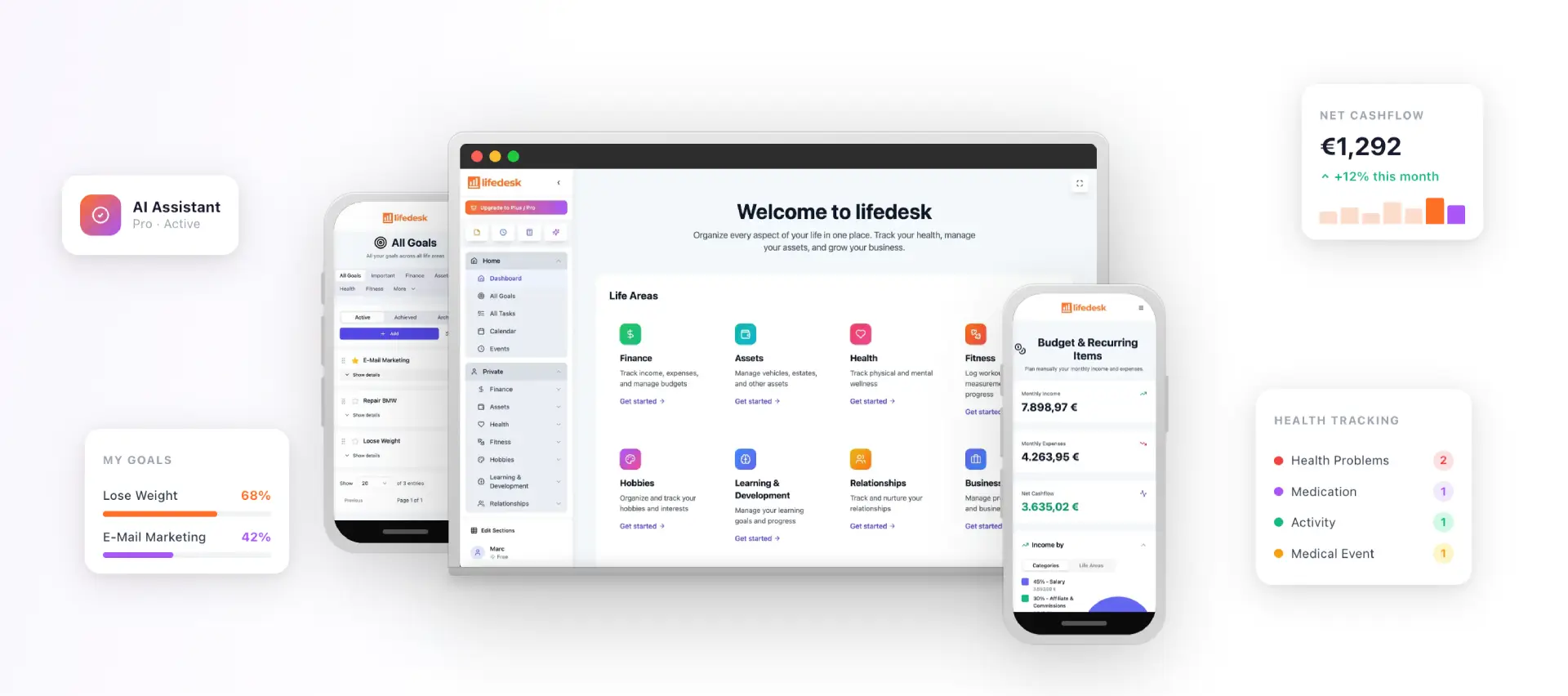
Most of the friction in AI for project management and scheduling comes from stitching together separate apps for tasks, calendar, and communication. LifeDesk was built to remove that seam entirely, combining task-first planning, calendar sync, and an integrated AI assistant in one system available on web, iOS, and Android.
The feature set maps directly onto the criteria that matter most:
Unified tasks and calendar so the AI works from one data source instead of guessing across disconnected apps.
A built-in AI assistant that estimates durations, proposes scheduling changes, and improves its accuracy the longer you use it.
Focus-time protection that defends blocked work against new meeting requests instead of letting anything overwrite them.
Analytics covering focus hours, task completion, and workload across both personal and business responsibilities.
Preview-first change handling, so proposed schedule adjustments surface for approval rather than executing silently.
A practical four-week pilot: Week one, connect your calendar and task lists, and let the AI assistant run in Suggest mode only, logging every recommendation without acting on it. Week two, start approving low-risk suggestions and track how many you accept versus reject. Week three, enable Auto mode for one or two routine categories, like recurring admin blocks. Week four, compare focus hours and completion rate against your baseline from week one.
That structure keeps you in control the entire time while still letting the system prove itself with real data instead of a sales pitch.
What Privacy Risks Come With AI Scheduling Tools?
AI time management tools need broad access to be useful: your calendar, your task lists, sometimes your email. That access is also the biggest privacy question professionals should ask before adopting one.
The scope of data access matters more than most people initially consider. A tool that only reads calendar free/busy status carries a very different risk profile than one that parses full meeting descriptions, attendee lists, and email content to build its suggestions. Before connecting anything, check whether the tool lets you scope permissions, for instance, granting calendar access without granting inbox access.
Compliance matters more for teams than solo users, but it applies to both. If you handle client data, health information, or financial details inside your scheduling and task tools, ask whether the vendor supports the compliance standards your industry requires, and whether data is encrypted both in transit and at rest. LifeDesk’s health data privacy policy is a useful example of the kind of explicit, checkable commitment worth looking for from any provider handling sensitive personal data.
The safest posture: grant the minimum access needed for the features you’ll actually use, review permissions quarterly, and treat any tool that requires full inbox access just to schedule a meeting with real skepticism.
Where Do AI Scheduling Tools Still Fall Short?
No AI scheduling agent understands nuance the way a person does, and pretending otherwise sets up disappointment fast.
Duration estimates are built from patterns, not context. An AI planner might learn that your “client calls” average 40 minutes, then confidently schedule 40 minutes for a call that everyone involved knows will run long because of the specific relationship or topic. It has no way to know that.
Priority scoring has similar blind spots. Automated systems tend to weight urgency and deadlines heavily because those are measurable. They’re far worse at weighting the kind of task that matters because it protects a relationship or prevents a future problem, the work that never shows up as urgent until it’s too late. That’s precisely why practitioner guidance favors human-in-the-loop modes: pure automation struggles with shifting, subjective priorities that don’t reduce to a deadline field.
There’s also a consistency bias worth naming directly. Tools trained on your past behavior will keep recommending more of that behavior, even when it’s the pattern you’re trying to break. If you’ve historically let deep work get interrupted by meetings, an AI that learns from history might under-defend focus time rather than push back on it.
None of this makes the tools less useful. It means the “Suggest” control mode isn’t a training-wheels phase you graduate out of entirely. For your most consequential decisions, a permanent layer of human review is the honest, sustainable setup.
How Do You Blend AI Suggestions With Your Own Habits?
The best results come from treating AI recommendations as a strong first draft, not a final answer.
Start by correcting bad estimates immediately rather than letting them slide. If the system schedules 30 minutes for something that always takes an hour, fix it the first time you see it. That single correction teaches the model faster than weeks of silent frustration.
Keep a short list of tasks that never go on autopilot, regardless of how good the automation gets. For most professionals, that’s client-facing commitments and anything involving a personal relationship. Let the AI handle recurring admin, routine scheduling, and buffer insertion. Keep the judgment calls yourself.
Set a recurring weekly check-in, ten minutes, to glance at what got auto-scheduled and confirm it still matches your actual priorities for the week ahead. Priorities shift faster than any algorithm updates, and a Monday morning scan catches drift before it costs you a Thursday.
Finally, resist the urge to enable every automation feature at once. Turn on one new “Auto” category every couple of weeks, so you can tell exactly which change caused which result if something goes wrong.
Try LifeDesk for Your Own AI-Powered Schedule
The verdict holds: AI scheduling agents reclaim real time when they run with preview-and-approval controls, and the biggest wins go to people using a unified, task-first system instead of five disconnected apps.
LifeDesk brings tasks, calendar, goals, and an AI assistant into one place across web, iOS, and Android, so the scheduling suggestions you get are based on your whole workload, not just whatever’s visible in one isolated app. You get the same Suggest-first control pattern described throughout this piece, letting you review proposed changes before anything moves. Explore the full feature set to see how task management, calendar sync, and the AI assistant work together, or start directly with the life management system to set up your first pilot week this week.
Yes. AI tools can auto-schedule tasks into real calendar gaps, estimate task duration, resolve conflicts, and defend focus time, though the strongest results come from keeping human approval in the loop rather than running full automation unsupervised.
What Is the 3-3-3 Rule for Time Management?
The 3-3-3 rule is a manual planning method: spend three hours on your most important task, handle three shorter urgent tasks, then spend three more hours on maintenance work like email or admin. AI scheduling tools can support this structure by auto-blocking the three-hour focus window and placing the shorter tasks around it.
Can ChatGPT Create a Schedule?
ChatGPT can draft a schedule based on the tasks and priorities you describe to it, but it typically has no live access to your actual calendar, so it can’t detect real conflicts or automatically adjust when meetings change. Purpose-built scheduling agents that sync directly with your calendar handle that part better.
What Are the 5 P’s of Time Management?
Definitions vary across sources, but a common version lists Prioritize, Plan, Prepare, Perform, and Perfect (review and adjust). AI tools mainly assist with the prioritizing and planning stages by estimating task importance and duration, while the reviewing stage still benefits from a human check-in.
Should I Start an AI Scheduling Tool in Auto Mode?
No. Start in Suggest mode for two to four weeks so you can review every proposed change, build trust in the estimates, and only shift low-risk, routine tasks into Auto mode once the system has proven accurate.